How to Add Schema Markup in Squarespace (Step-by-Step Guide)
If you’ve been googling “how to get my Squarespace site to show up on Google,” you’ve probably come across the term schema markup. Sounds fancy, right? But here’s the truth: schema isn’t just another tech buzzword — it’s how you talk to Google in a language it actually understands.
Without it, your site is basically whispering. With it? You’re handing Google a neon-lit cheat sheet that says, “Hey, here’s exactly what this page is about.”
And yes — you can add schema to Squarespace. Even if you’re not a developer. Let’s break it down.
Table of Contents

What Is Schema Markup (and Why Should You Care)?
Schema (also called structured data) is a piece of code — usually in JSON-LD format — that describes your content to search engines.
Think of it like metadata on steroids: instead of Google guessing, you tell it, “This page is a Service,” or “This page answers FAQs,” or “This is a Product with reviews.”
Why it matters:
Unlocks rich results (FAQ dropdowns, stars, sitelinks).
Makes your Squarespace site more visible in AI Overviews / SGE.
Improves click-through rates, even if your rankings don’t move (yet).
Does Squarespace Add Schema Automatically?
Yes… but only the basics. Squarespace automatically adds schema for:
Products (in Commerce sites)
Articles (your blog posts)
Organization/Website
But it’s generic. It doesn’t know you’re a Squarespace SEO expert, a coach, a photographer, or a service provider unless you tell it. That’s where custom schema comes in.
Types of Schema Worth Adding to Squarespace
Depending on your site, you may want to add:
Service schema → for coaches, designers, consultants.
FAQPage schema → great for earning FAQ rich snippets.
Product schema → for e-commerce shops.
Article / BlogPosting schema → for blogs (beyond the default).
LocalBusiness schema → if you serve clients in a physical location.
Bonus: HowTo, Review, Event, Recipe (if relevant).
How to Add Schema Markup in Squarespace (Step-by-Step)
Here’s the part you came for.
Step 1: Generate your schema code
You don’t have to write JSON-LD from scratch. Use a generator like:
Or hire a Squarespace SEO consultant (hi 👋) to create custom markup.
Example: a basic Service schema for SEO services.
<script type="application/ld+json">
{
  "@context": "https://schema.org",
  "@type": "Service",
  "name": "Squarespace SEO Expert Services",
  "description": "Done-for-you Squarespace SEO optimization, including audits, schema markup, and on-page improvements.",
  "provider": {
    "@type": "Organization",
    "name": "Marta Lebre Design",
    "url": "https://martalebre.com"
  },
  "areaServed": "Worldwide",
  "serviceType": "SEO Services"
}
</script>
Step 2: Open Squarespace Page Settings
Go to the page you want schema on.
Click Settings → Advanced.
Find the Header Code Injection field.
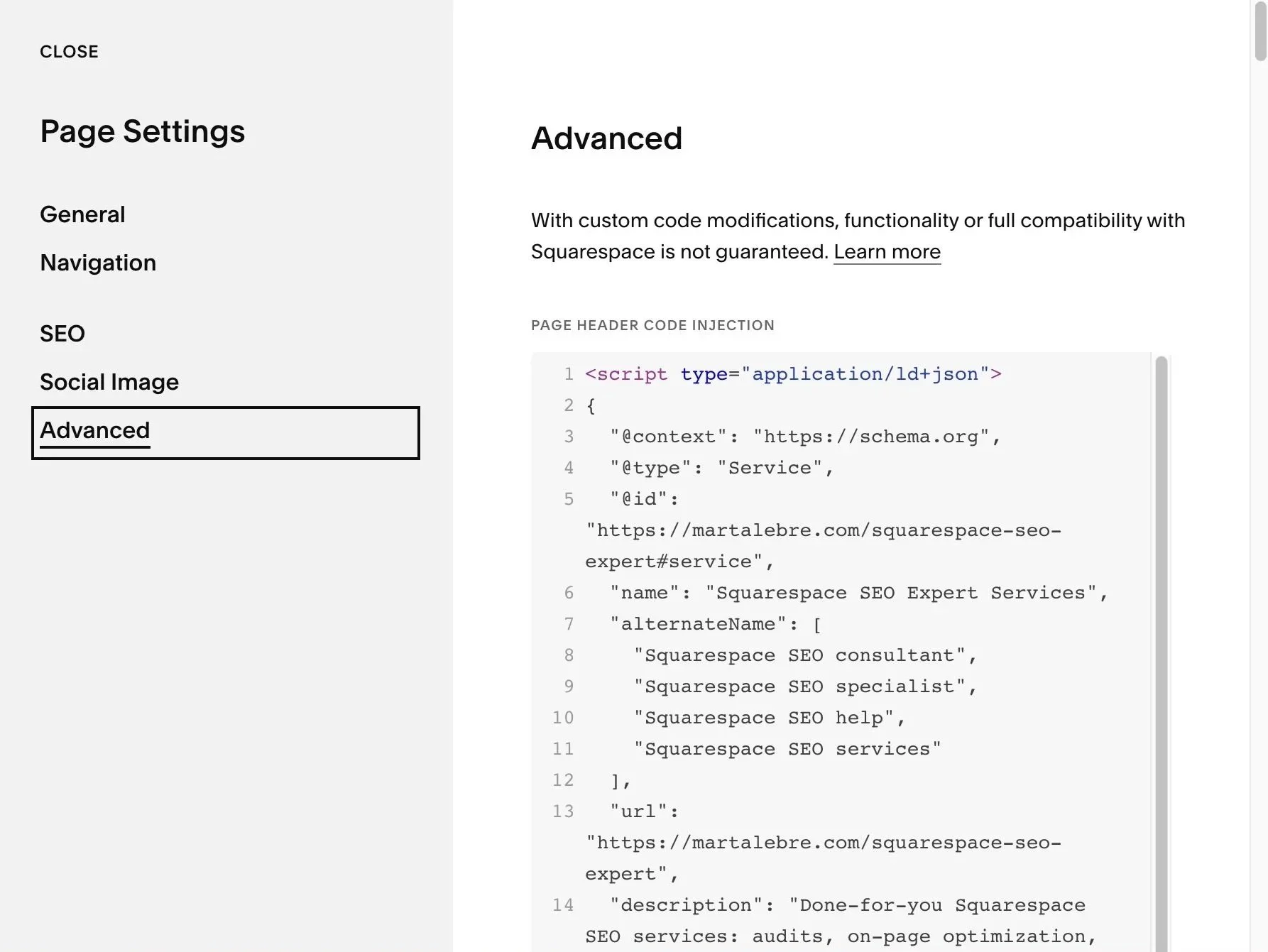
Step 3: Paste Your JSON-LD Code
Paste your schema block inside:
<script type="application/ld+json">
...your schema code...
</script>
Hit save. Publish. Done.
Step 4: Test Your Schema
Never skip this. Use:
Google Rich Results Test
Check for errors (red = bad, green = good).
Example: Adding FAQ Schema in Squarespace
Here’s a simple FAQ schema you can drop in (just swap the questions/answers for your own).
<script type="application/ld+json">
{
  "@context": "https://schema.org",
  "@type": "FAQPage",
  "mainEntity": [
    {
      "@type": "Question",
      "name": "Is Squarespace good for SEO?",
      "acceptedAnswer": {
        "@type": "Answer",
        "text": "Yes. Squarespace provides a solid SEO foundation, but custom optimization and schema markup make it much more powerful."
      }
    },
    {
      "@type": "Question",
      "name": "Can I add schema markup to Squarespace?",
      "acceptedAnswer": {
        "@type": "Answer",
        "text": "Yes! You can paste JSON-LD schema into the page’s Header Code Injection field."
      }
    }
  ]
}
</script>
When Google crawls this page, your FAQs may appear directly in search results.
Pro tip: Add FAQs + FAQ Schema at the bottom of your blog post - like I did in this one.
Important update: FAQ schema no longer gives most websites the expandable FAQ rich results you may remember seeing in Google. Google first restricted those results to a small group of authoritative government and health sites, and in 2026 deprecated the FAQ rich result feature altogether. That doesn’t mean structured data is useless — Google still uses supported schema types to understand page content and power other search features — but I would no longer add FAQ schema expecting it to improve your search-result appearance or click-through rate.
Common Mistakes When Adding Schema in Squarespace
Even though adding schema markup in Squarespace is “just copy-paste,” it’s easy to mess it up. Here are the mistakes I see most often:
1. Forgetting to update schema when content changes
If you change your services, FAQs, or product details, your schema needs updating too. Otherwise, Google sees outdated info and may stop showing your rich results.
Example: You change your pricing or service description, but your schema still lists the old info.
2. Copy-pasting generic schema without customizing
Tools spit out placeholder text like “Organization Name” or “Service Name.” If you don’t replace those with your data, Google may ignore it—or worse, it looks spammy.
3. Overlapping or conflicting schema types
Adding multiple “Service” or “FAQPage” blocks to the same page without clear structure can confuse crawlers.
Keep one main type per page (Service, FAQ, Article, etc.), and supplement with related types (like Organization).
4. Using the wrong format (Microdata or RDFa)
Squarespace doesn’t play well with inline Microdata. Always use JSON-LD, which is Google’s recommended format.
5. Not testing schema before publishing
Skipping validation is like sending a resume full of typos. Always run your schema through Google’s Rich Results Test or Schema.org Validator.
6. Forgetting page-specific placement
A lot of people paste all schema site-wide in the “Code Injection” settings. Bad idea.
Example: FAQ schema should live only on the FAQ page, not on every single page of your site.
Advanced Tips for Schema in Squarespace
Once you’ve mastered the basics, here’s how to really stand out in Google’s eyes:
1. Combine schema types strategically
Example: On your Squarespace SEO Expert page, use service schema plus FAQPage. On a blog post, use article schema plus HowTo if it’s instructional.
This layered approach increases eligibility for multiple rich results.
2. Add @id anchors for clarity
Give each schema block a unique @id (e.g., https://yoursite.com#service). This helps Google connect different entities across your site.
3. Local SEO boost with LocalBusiness schema
If you target a city or region, add LocalBusiness schema with your name, address, phone, hours, and map link. This makes you eligible for Google Map Pack rankings.
For local businesses like wedding venues, schema is only one piece of the puzzle — here’s my full guide to SEO for wedding venues.
4. Use Product schema for templates or services with pricing
Even if you’re not running a store, you can mark up services as products with offers. This can display pricing directly in search results (if appropriate).
5. Leverage FAQ schema for featured snippets
Pick your top client questions (like “Is Squarespace good for SEO?”) and mark them up. These are prime candidates for rich snippet boxes.
6. Track schema performance in Google Search Console
After you add schema, GSC will show you “Enhancements.” Monitor impressions, clicks, and errors. This helps you see if Google is using your markup.
7. Schema for AI Overviews (SGE)
While still evolving, early signs show that clean schema increases your chances of being cited in AI-generated answers. Future-proof your site by covering basics: Service, FAQ, Article, LocalBusiness.
Wrapping Up
Schema markup is still useful — but not because every schema type turns your search result into something flashy.
Google has scaled back or removed some rich-result features over time, and FAQ schema is a good example. FAQ rich results are no longer something most businesses can expect to appear in search, so I wouldn’t add FAQ schema hoping for those old expandable dropdowns.
What schema still does well is give search engines clearer, structured information about your business, services, products, articles and other content. And for schema types Google still supports with rich results, it can also help your pages become eligible for enhanced search features.
The important distinction is this:
Schema can help Google understand your content better. It does not make weak content rank, guarantee rich results or fix a page that doesn’t satisfy search intent.
If your site is technically set up correctly and you’re still wondering why your Squarespace website isn’t showing up on Google, I’ve broken down the most common indexing, ranking, content and search-intent problems there.
And once schema is set up properly, it can quietly do its job in the background — no constant tweaking required.
If you want custom schema written for you — and the rest of your SEO handled — hire me as your Squarespace SEO expert. I’ll make sure Google has the clearest possible understanding of your site, while we also work on the things that actually determine whether the right people can find you.
Frequently Asked Questions About Schema in Squarespace
-
Not yet. Squarespace doesn’t have a built-in schema generator. You’ll need to paste JSON-LD code into your page’s header injection field.
-
Yes, but only the basics. Squarespace adds schema for products, blog posts, and your organization/website. For services, FAQs, local business details, or reviews, you need to add custom schema manually.
-
Open the page you want schema on → go to Settings → Advanced → Header Code Injection. Paste your JSON-LD code there and save.
-
No. Use schema strategically. For example:
Service pages → Service schema
FAQ pages → FAQPage schema
Product pages → Product schema
Blog posts → Article schema
Not every page needs it.
-
Schema itself isn’t a direct ranking factor. But it improves how your results appear (rich snippets, stars, FAQs, etc.), which boosts your click-through rate. More clicks signal relevance to Google, which can improve rankings.
-
FAQ schema. It’s simple to generate, easy to paste into Squarespace, and often gets picked up quickly in search results.
-
Use Google’s Rich Results Test or Schema.org Validator to check if your schema is valid and eligible for rich results.
-
Nope! As long as you can copy-paste JSON-LD into the code injection field, you can handle it yourself. For more advanced schema (like Service + LocalBusiness combined), working with a Squarespace SEO expert is worth it.