
Most Squarespace redesigns start with the visible part: new fonts, new photos, a homepage that finally looks like the business you run now. The risky part is the part you can't see. It's the pages Google already trusts, the URLs other websites link to, and the blog comments or order history that won't follow you to a new site.
You can redesign a Squarespace website while the current one stays live, and depending on how it's built, you may not need to start from scratch. The right method depends on four things: whether you're on Squarespace 7.0 or 7.1, how much content you have, whether you sell anything through the site, and how much search traffic you'd hate to lose.
Below are five ways to approach a Squarespace website redesign, how to protect your SEO through each one, and a checklist for launch. And because I'm a website strategist as well as a Squarespace designer, I'll also make a case for something most redesign tutorials leave out: checking that the new site will bring in more of the right inquiries. If it just brings in the same number with better typography, the redesign hasn't done its job.
Which redesign method fits your site?
If you only read one section, make it this one.
You want new fonts, colors, or a few updated sections. Redesign your existing pages live (Method 1), and try a Theme in Site Styles first.
You're rebuilding your homepage or a handful of key pages on 7.1. Build the new versions under Not Linked while the old ones stay published (Method 2).
Your site is small, gets little search traffic, and has no shop, comments, or member areas. Duplicate the site or start a new trial, and move your domain when the new version is ready (Method 3).
Your site has years of blog posts, comments, orders, customer accounts, or members. Design on a staging site, then bring the design back into your original site (Method 4).
You're still on Squarespace 7.0. Use the 7.0 to 7.1 update tool, and plan to redesign straight afterward (Method 5).
| Redesign Method | Best For | What to Watch Out For |
|---|---|---|
| 1. Redesign existing pages live | Copy improvements, light visual refreshes, new sections | Changes to published pages appear immediately. |
| 2. Build new pages under Not Linked | Replacing a few major pages on a 7.1 site | Site-wide style changes still affect the live site |
| 3. Duplicate or start a new one | Bigger rebuilds of simple sites with little traffic | Moving the domain doesn't move comments, orders or every setting. |
| 4. Build on a staging site, then transfer the design | Established sites with blogs, commerce or member data | Transferring designs between sites takes planning or a third-party tool. |
| 5. Update from 7.0 to 7.1, then redesign | 7.0 sites with content and rankings to keep | The update is permanent, and your design won't survive it |
A professionally designed Squarespace template can be the starting point for several of these. More on that after the methods.
Method 1: Redesign your existing pages live
Best for: small and medium improvements on a site whose structure already works.
This is the simplest approach. You don't create another site, move your domain or migrate anything. You work inside your current site and change fonts, colors, images, layouts, navigation and copy. In Squarespace 7.1, Fluid Engine gives you a lot of freedom to rearrange sections and blocks.
Before you rearrange anything by hand, open Site Styles (the paintbrush icon in the editor) and look at Themes. These are preset style packs, with names like Professional, Bold and Playful, that change fonts, colors and buttons across the whole site at once. They're a quick way to see whether your content works in a different visual direction before you rebuild a single section.
To edit page content:
Go to Website → Pages in your Squarespace dashboard.
Open the page you want to change and click Edit.
Add, remove or rearrange sections and blocks.
Update text, images and buttons.
Check the mobile layout and adjust it.
Save when you're happy for the changes to go live.
Everything you change here is on your published website. For small edits that's fine. If you're planning to rebuild your homepage from the ground up, you probably don't want visitors arriving halfway through.
Two more things to know before you click. Style changes apply to every page, so a Theme you're "just trying" is live for everyone. And if you reset your styles, Squarespace can't undo it once you leave the Site Styles panel. Take screenshots of your current settings first.
For anything bigger, use Method 2.
Method 2: Build new pages under Not Linked while your website stays live
Best for: redesigning a few major pages without touching the live versions.
This is one of the most useful methods for Squarespace 7.1 sites. Your existing pages stay published while you build their replacements next to them.
Go to Website → Pages and find the Not Linked section.
Create a new page there, or duplicate the page you're replacing.
Give it a temporary URL slug, such as /home-new.
In the page's SEO settings, turn on Hide from search results.
Build and test the new design.
Not Linked doesn't mean private. A page in Not Linked is left out of your navigation, but anyone with the URL can open it, and search engines can find it. That's why the working page should be hidden from search while you build.
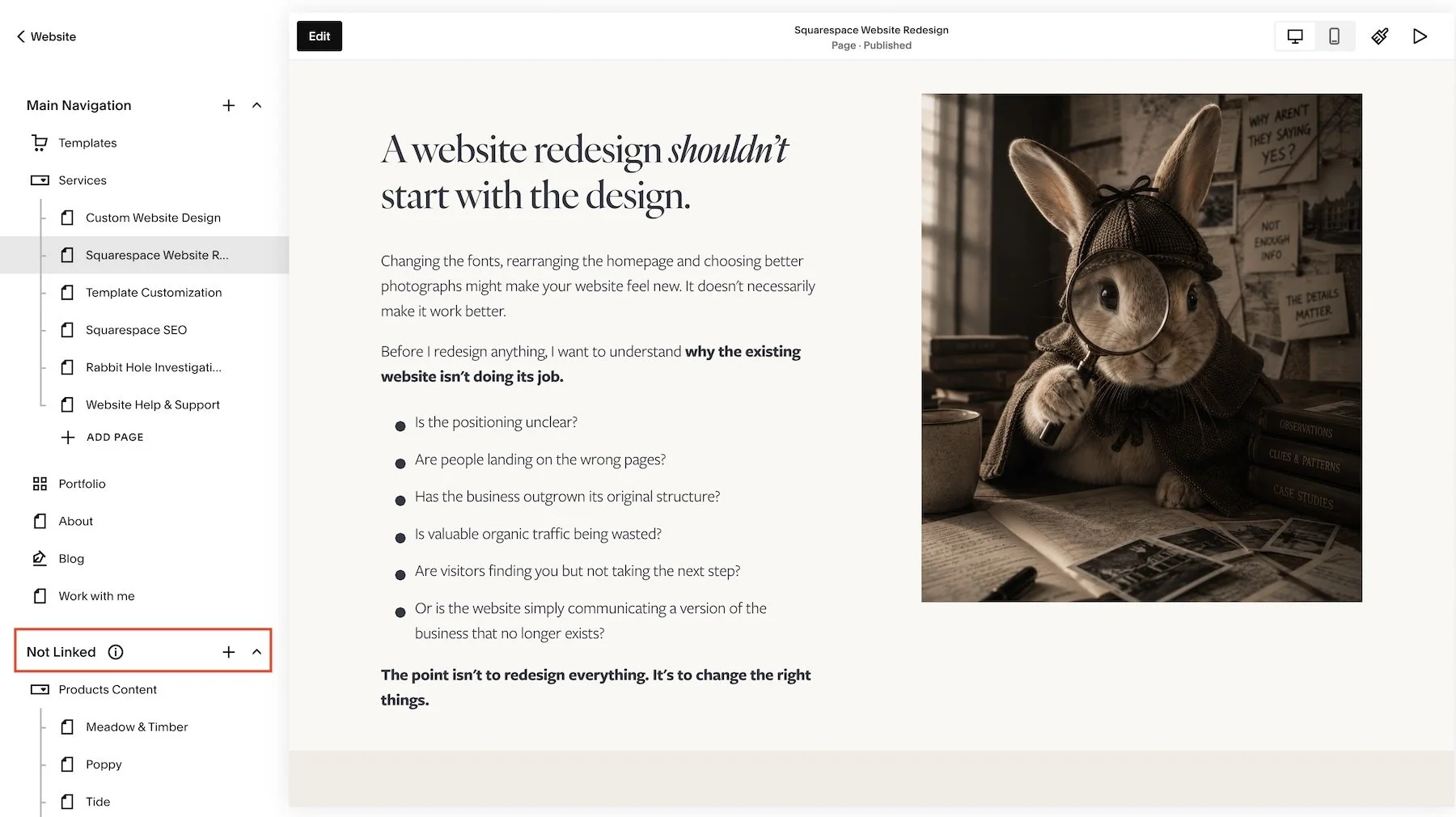
Build replacement pages under Not Linked while the current pages stay live.
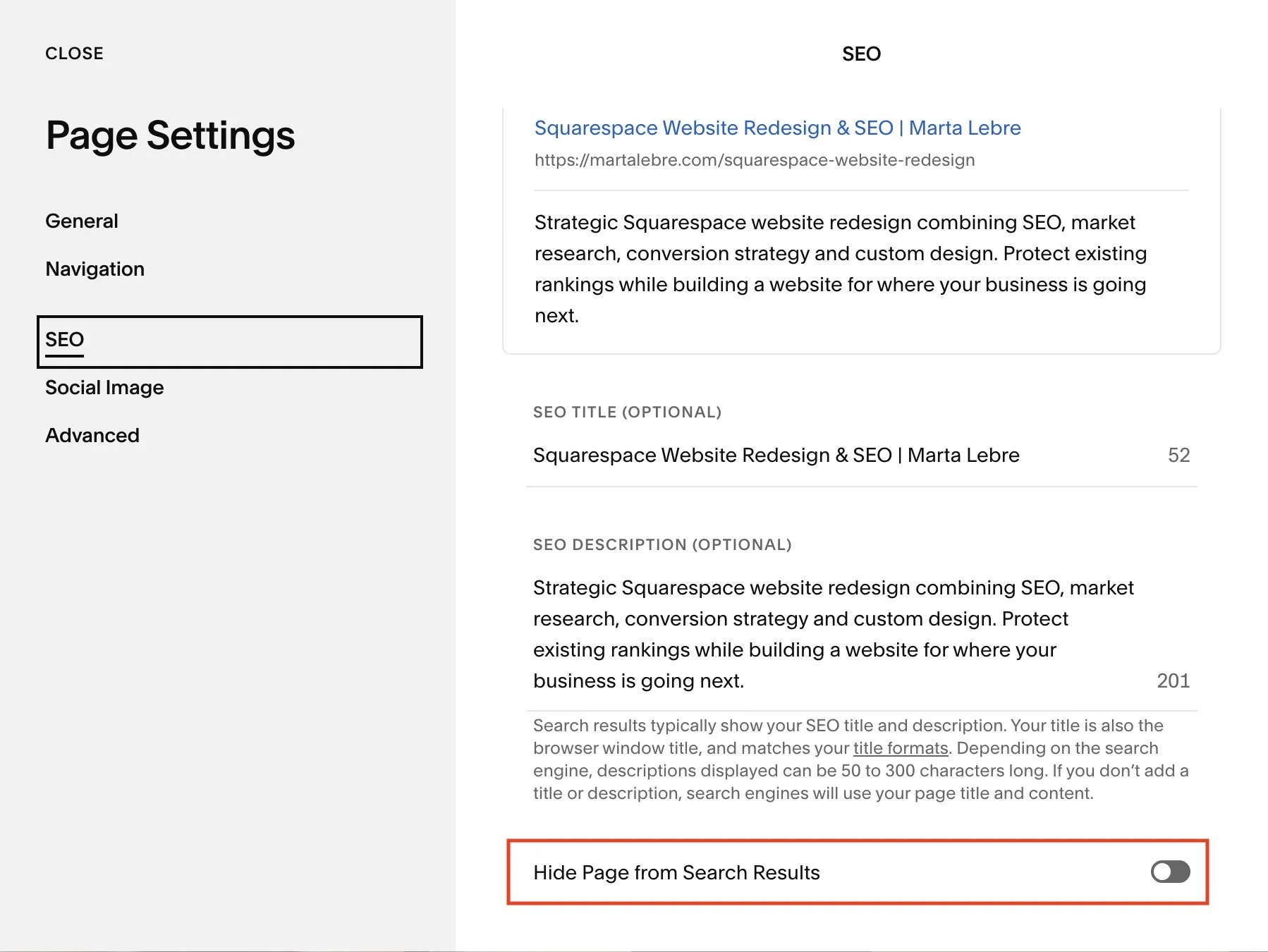
While you build, turn on Hide Page from Search Results in the working page’s SEO settings.
Also, page settings and site-wide settings are different things. If you change global fonts, colors, buttons, the header or the footer while you're working, those changes reach the live site too.
Method 3: Duplicate your Squarespace site or start a new one
Best for: a major redesign of a fairly simple site, when you'd like a separate workspace.
Sometimes a clean slate is easier. You can duplicate an eligible Squarespace site or start a new trial, build the redesign there, and connect your existing domain when you're ready to launch. Your current site stays live the whole time. This works well when you're starting from a new template or changing the structure substantially.
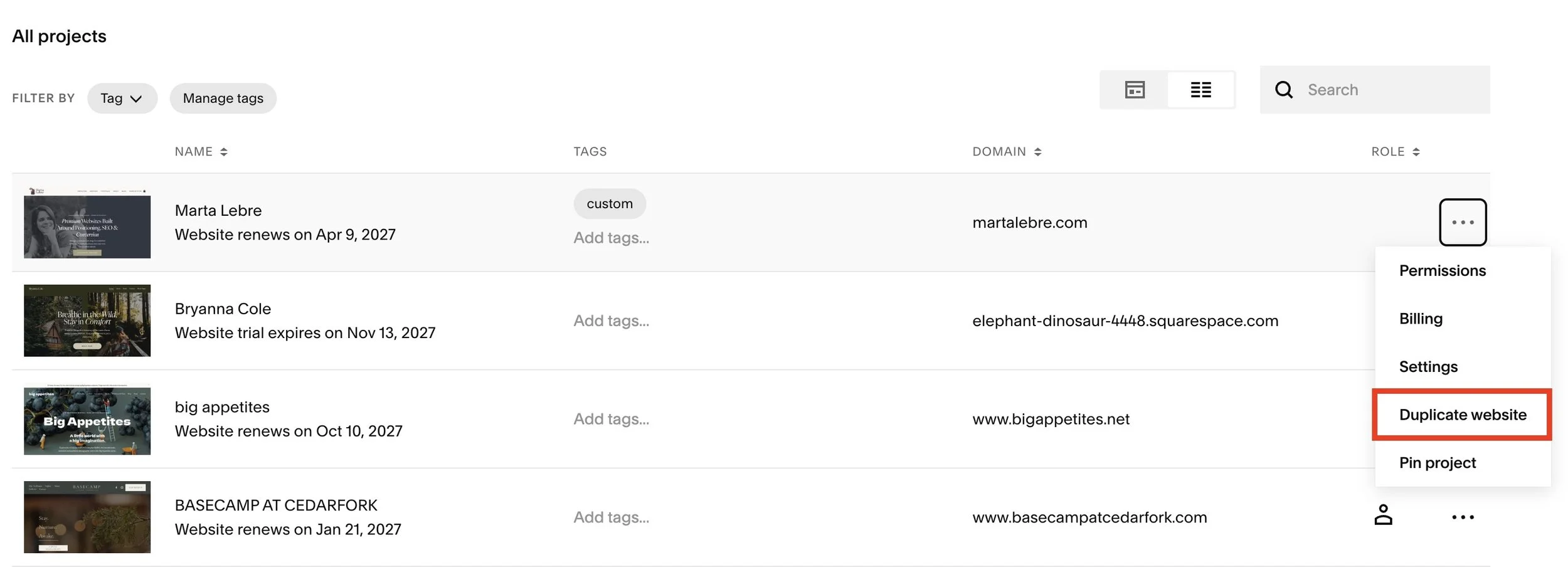
For a bigger rebuild on a simple site, duplicating it gives you a separate place to work while the original stays live.
Duplicate your site or start a new trial.
Keep the new site private and out of search results while you build.
Rebuild or transfer the pages and content you need.
Recreate SEO settings, navigation, forms and integrations.
Keep the URL paths of your important pages.
Set up redirects for any URLs that change.
Test everything.
Move or connect your domain.
Check the domain, SSL, redirects, analytics and indexing.
The part that catches people out is what doesn't move with the domain. Your domain and your website are separate things. Pointing the domain at a new site doesn't bring the old site's data along.
Squarespace's guide to duplicating a site lists what copies and what doesn't. Read it before you start, not after. The short version for most service businesses: pages, structure and design come across. Blog comments, store orders and customer accounts don't get duplicated, and some subscriptions have to be set up again on the new site. If you start a new trial from a 7.0 site, the new site will be 7.1.
Be especially careful if you have:
An established blog with comments
An online store with customer and order history
Member areas or subscriptions
Connected scheduling, booking or payment systems
Custom code, integrations and tracking
A lot of indexed pages and backlinks
If your website is a handful of informational pages with little search visibility, rebuilding on a separate site is perfectly reasonable. If it has years of blog content, rankings you rely on, customer data or complicated integrations, I'd be much more cautious. Starting fresh can be easy from a design point of view and needlessly complicated from a business one.
Method 4: Use a staging site and bring the redesign back
Best for: established sites that need a substantial redesign but should keep their content, commerce data and original installation.
This is a variation on Method 3, with one important difference. You design on a separate Squarespace site, but instead of moving your domain to it, you bring the new pages and styles back into your original site. Everything that would be hard or impossible to migrate stays where it is.
Create a separate development site.
Build and test the new page layouts.
Set up your new fonts, colors and buttons.
Review the structure, navigation, copy and mobile experience.
Plan the transfer into your live site.
Move or recreate the layouts and styles in the original site.
Replace pages while keeping their existing URLs wherever possible.
Test everything before you call it finished.
Squarespace doesn't have a native tool for copying a whole design and its page layouts from one site to another. Third-party tools such as SquareWebsites Tools PRO can copy compatible layouts and style settings, and you can always recreate sections by hand. It takes more planning than the other methods, especially for global styles. In return, you can experiment freely without risking the live site, and for a larger commercial site that's often worth the extra work.
Whatever the method, do the switch when the fewest people are looking. I work from Poland, 6 to 9 hours ahead of my US and Canadian clients, so this happens naturally in my projects: the ugliest part of the redesign takes place while everyone on the client's side of the Atlantic is asleep. By the time they have their morning coffee, the new styles are in, the pages are swapped, and I've already clicked through the site looking for anything that broke.
If you're doing it yourself, pick your own quiet hours, usually late evening or early morning. Some designers password-protect the site for an hour or two during the switch, with a lock screen that shows a phone number or a simple contact form. For a small shop that's a reasonable trade. For a business whose inquiries arrive at any hour, or a site with strong rankings, I'd rather plan the transfer page by page and keep the site public throughout.
Method 5: Update from Squarespace 7.0 to 7.1, then redesign
Best for: 7.0 sites with content and rankings worth keeping in the same installation.
If you're still on Squarespace 7.0, the update tool is worth a look for what it keeps. Your pages, blog posts, URLs and key SEO settings stay in the same site, so you aren't migrating anything to a new installation or moving a domain.
What it doesn't keep is your design. 7.0 templates and 7.1 are built differently, and in my experience the site that comes out the other side of the update is a mess. Layouts that made sense in your old template stop holding together, and the styles need to be set up again more or less from scratch. So don't think of the update as an alternative to a redesign. It's the first step of one, and you should budget time (or money) for both before you start.
The update is also permanent. You can't switch back to 7.0 afterward, so don't treat this as a casual button to click halfway through your lunch break.
Before updating:
Check whether your site is eligible for the update tool.
Back up important content and document your current setup, including screenshots of every key page.
Record your existing URLs and SEO settings.
Read Squarespace's current update instructions.
Use the preview or preparation options available for your site.
Plan the redesign before you update, so the site doesn't sit in its post-update state for weeks.
After updating, check pages, forms, integrations, navigation and mobile layouts, then start redesigning.
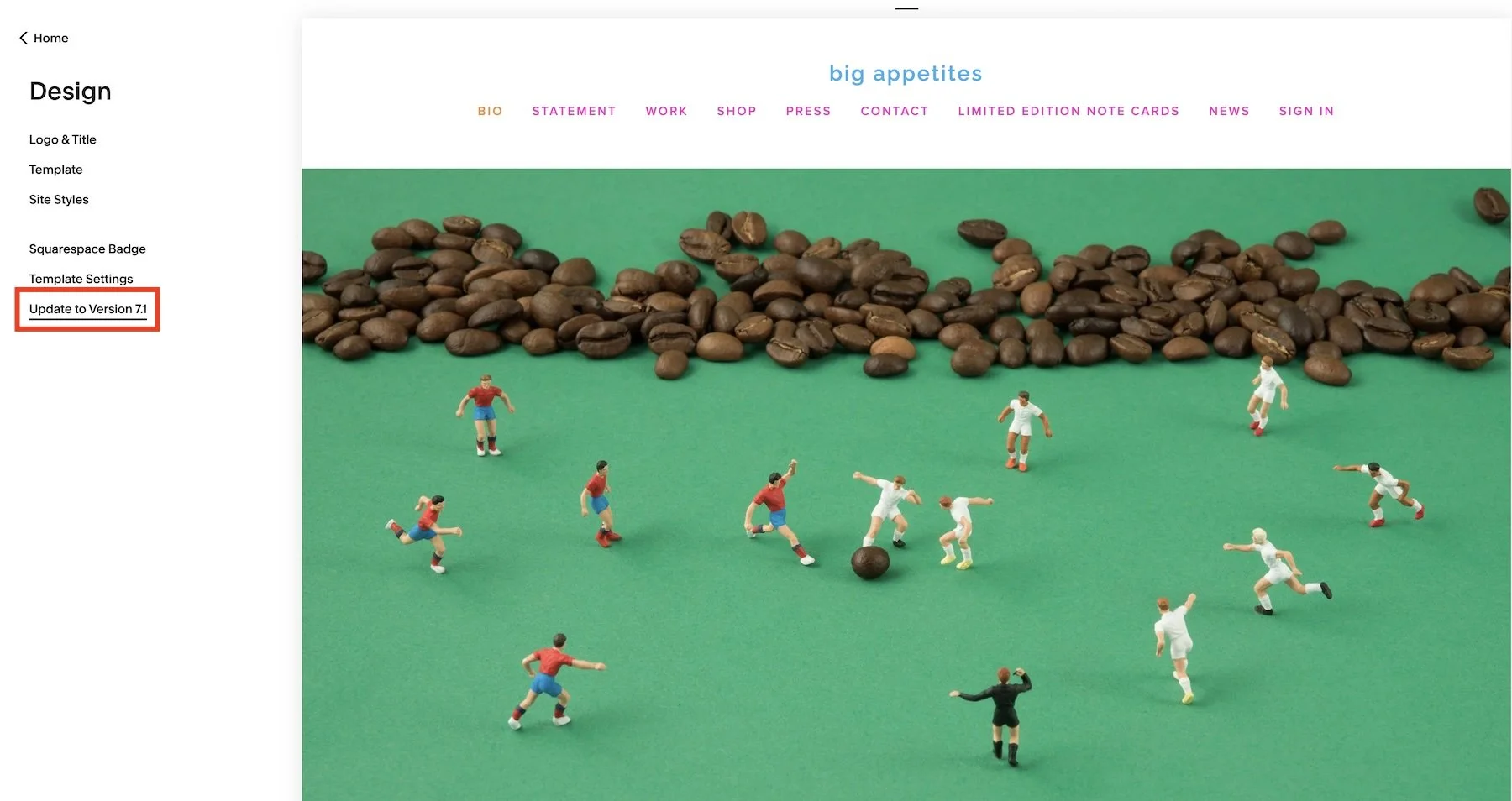
On an eligible 7.0 site, the update keeps your existing content and URLs in place. Plan time to rebuild the design afterward. By the way, this is my client Christopher Boffoli’s website before upgrade and redesign. Image copyright by Christopher Boffoli.
If you have a large 7.0 site with established rankings, I'd still choose the update tool over rebuilding on a new site. You'll be redesigning either way, but the update keeps your content and URLs where Google already knows them.
If you're going to redesign after the update anyway, a Squarespace template can save you most of the design decisions. Bring its layouts and styles into your updated site and fill them with the content you already have.
For the current instructions, see Squarespace's guide to updating from 7.0 to 7.1.
Can you use a Squarespace template to redesign your existing website?
Yes, and for smaller sites it's often the quickest route. A professionally designed template gives you a finished visual direction and page layouts, so you're making content decisions instead of design ones.
There are two ways to do it.
Start a new site from the template. Buy a Squarespace 7.1 template, add your content, and connect your existing domain when it's ready. This is the easier route when your current site has few pages and not much content or search visibility to protect.
Bring the template design into your existing site. Recreate or transfer the template's layouts and style settings inside your current Squarespace site. This is the better choice when your site already has valuable content, rankings or data you don't want to disturb. Third-party layout transfer tools may help, depending on how the template is delivered.
One thing to understand: Squarespace 7.1 doesn't let you switch templates the way 7.0 did. All 7.1 sites use the same underlying system, so "changing template" really means changing the design, layouts and settings. I've explained the workarounds in how to change your Squarespace template in version 7.1.
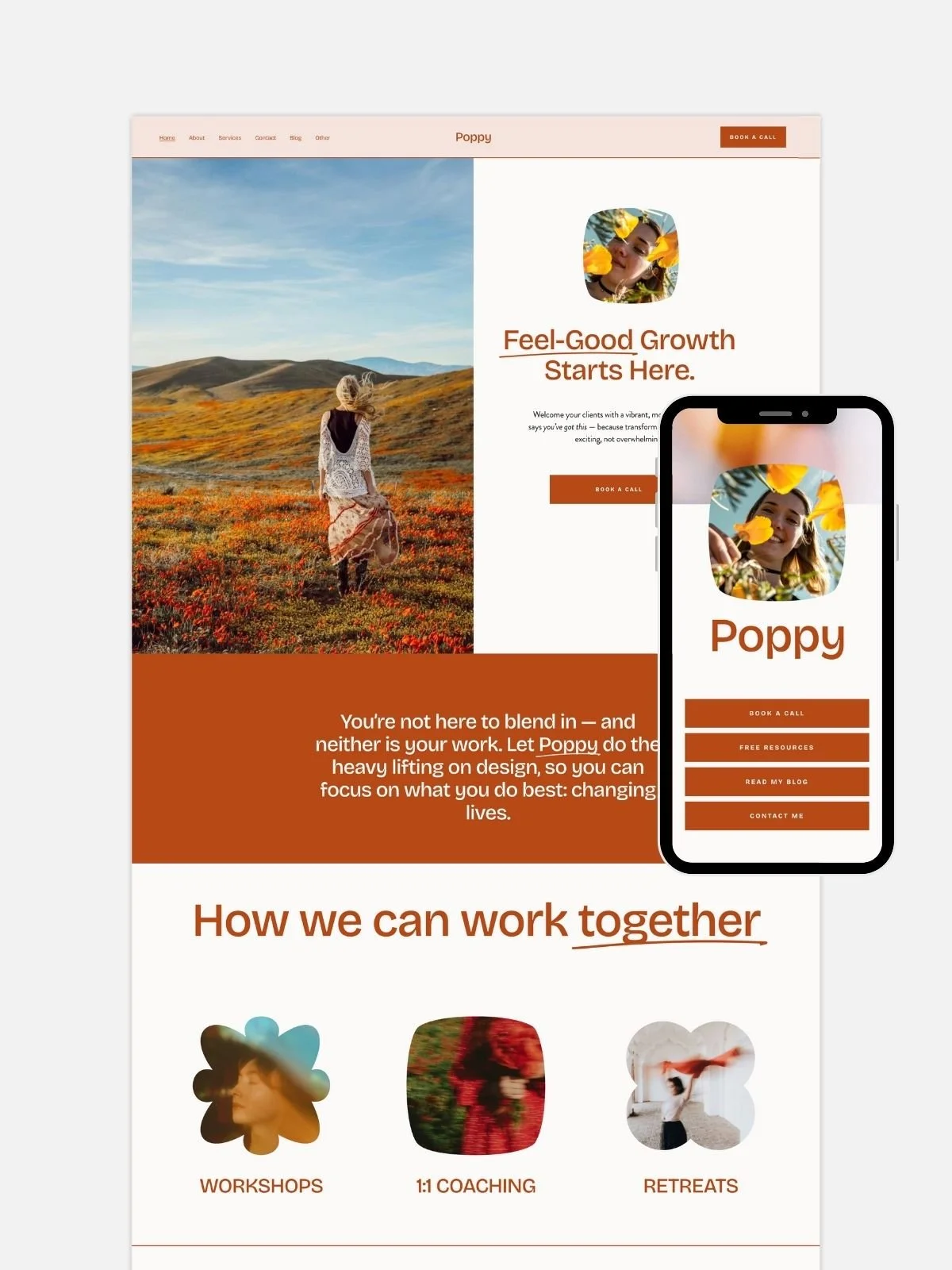
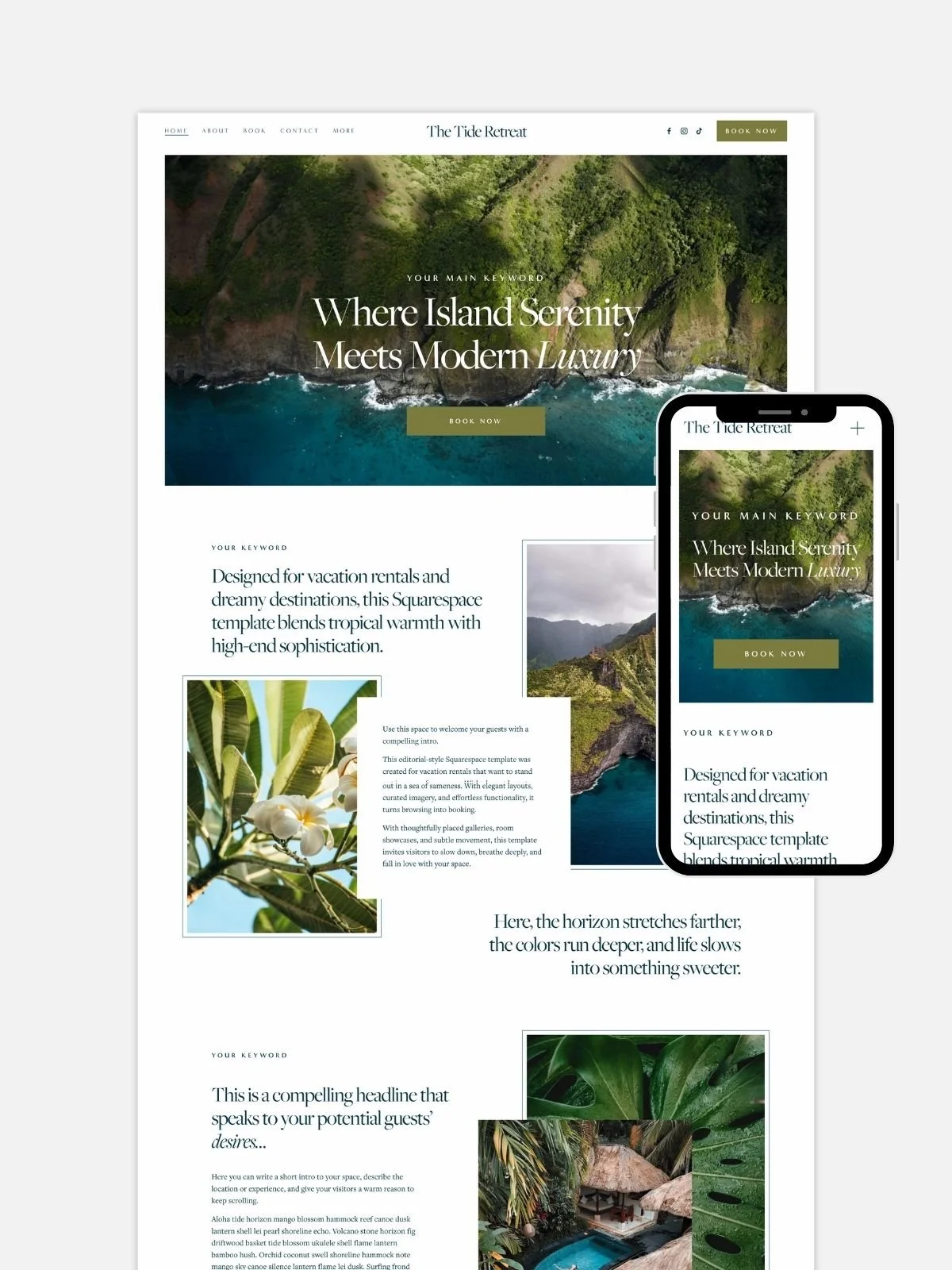
If you'd like a starting point built around how people choose a venue, a stay or a service, you can browse my Squarespace templates. Each one comes with the page structure already worked out, so the redesign is mostly a matter of your words and photos.
A template saves a lot of design time. It doesn't fix unclear messaging, weak positioning or a site that doesn't convert. I'll come back to that.


How to redesign a Squarespace website without losing SEO
Now for the part that makes established website owners nervous…. You've spent years publishing content. Some pages rank well. How to protect your SEO during a Squarespace website redesign
If you've spent years publishing content, this is the section to read slowly. Some of your pages rank. People find you through Google. Other websites link to your articles. And you're about to change a large part of the site.
Can a Squarespace redesign hurt your SEO? Yes, but it doesn't have to. A visual redesign that keeps your URLs and content is much less disruptive than rebuilding the site on a different structure. Even when URLs stay the same, though, rewritten content, deleted pages, weaker internal linking and technical mistakes can all affect your visibility.
Step 1: Audit your search performance before you touch anything
Find out what your current site already does well. Otherwise you might remove the very content that brings in potential customers.
In Google Search Console, go to Performance → Search results and look at a meaningful period, ideally compared with the previous period or year. Look for:
Pages that get the most clicks from search
Queries that bring you visibility
Pages with plenty of impressions, even if clicks are low
Content that consistently attracts potential customers
Pages whose visibility is declining
Branded versus non-branded searches
Pay attention to the difference between traffic and useful traffic. A blog post with thousands of visitors isn't helping much if none of them are interested in what you sell. A service page with fifty visitors who are actually considering hiring you might be worth far more.
Also find the pages that have earned backlinks from other websites. Search Console, Ahrefs, Semrush and other backlink checkers can show you these. Then make a list of the pages worth protecting. You can still change how they look, but handle them with care.
Step 2: Make a complete URL inventory
This is one of the most important steps. Before you launch, document every existing URL. Your Squarespace sitemap is a good start, usually at:
yourwebsite.com/sitemap.xml
The sitemap may not list every URL you need to account for, so check Search Console, analytics, backlinks and any old URLs you know about too. Then build a spreadsheet:
| Current URL | Organic Importance | Planned Action | New URL |
|---|---|---|---|
| /about | Medium | Keep and improve | /about |
| /services | High | Redesign | /services |
| /old-service | Medium | Merge and redirect | /new-service |
| /blog/popular-article | High | Preserve | Same URL |
This is your migration map. For every important page, decide whether you're keeping it, improving it, merging it, redirecting it or removing it. Don't delete pages just because they don't fit your new navigation. Some of your best search landing pages may never have been in your main menu.
Step 3: Keep your existing URLs wherever possible
If a page already ranks for relevant searches, there's rarely a good reason to change its URL just because the design is changing. If your services page lives at yourwebsite.com/services, keep it there.
You can rewrite the copy, change the layout, add testimonials and reorganize the information without touching the URL. That avoids unnecessary redirects and keeps the migration simpler.
Sometimes changing the structure does make sense: you're consolidating overlapping service pages, separating different offers, or replacing an outdated structure. In that case, plan your redirects.
Step 4: Set up 301 redirects for changed or deleted URLs
A 301 redirect tells browsers and search engines that a page has moved permanently. If you're replacing /old-services with /services, you'd add this line in Squarespace's URL Mappings:
/old-services -> /services 301
A few rules:
Redirect each old URL to its most relevant replacement.
Don't redirect everything to your homepage.
Avoid redirect chains when a direct redirect is possible.
Update internal links so they point straight to the final URL.
Test your redirects after launch.
Keep useful old redirects instead of deleting them.
One detail people miss: Squarespace URL mappings only work for paths that don't have an active page. If the old page still exists at that URL, the redirect will be ignored.
Redirects also don't guarantee that rankings stay identical. Search engines still need to process the change and evaluate the new page. But they're an essential part of any migration.
Step 5: Keep what’s already working in your content
This is where I'd be most careful. Imagine a service page that ranks for several relevant searches. You redesign it with a full-screen photograph, one clever headline and three short paragraphs. It looks fantastic.
Unfortunately, you've also removed most of the information that helped Google understand the page and helped visitors judge your service. The page is now stronger visually and weaker in search. So before you rewrite a page that performs well, look at the searches it currently appears for:
Which topics does the page cover?
Which questions does it answer?
Which sections are useful to people who arrive from search?
What information does someone need to understand the service?
You can certainly improve the content. A redesign is a good moment to make it more useful. Just don't assume that shorter, prettier copy is better. The most commercially valuable information is often what designers are tempted to remove: pricing details, service explanations, specifications, FAQs, location information, comparisons. All those supposedly boring things people need before they can make a decision.
While you're on each page, check its SEO settings: SEO title, meta description, H1, heading order, URL slug, image alt text, internal links and indexing settings. If a page performs well, don't swap a descriptive SEO title for an abstract brand slogan. Your visible headline can be creative while the SEO title says plainly what the page is.
A redesign is also a good moment to fix pages that underperform: a service page ranking for the wrong searches, a useful article with an unclear title, two pages that overlap so much neither has a clear job. Make those changes on purpose rather than by accident.
Step 6: Check your internal links and navigation
Redesigns often simplify navigation, which is usually good for visitors. But it's possible to simplify a site so enthusiastically that important pages become hard to find. Search engines also use internal links to discover pages and understand how they relate.
If you're changing the structure, review links from:
The main navigation and footer
The homepage
Related blog posts
Service pages and landing pages
Buttons and calls to action
A blog post about choosing a particular service should link to that service page. The service page might link to a case study that shows results. These links help visitors move through the site and tell search engines how your content fits together. Don't rely on the navigation alone.
Step 7: Monitor your SEO after launch
Your job isn't finished when the new site goes live. First, submit your sitemap in Google Search Console and use URL Inspection on your five or ten most important pages. If a page you expected to be indexed shows as excluded or "noindex", it's usually a leftover Hide from search results setting from the build.
Then, for the following weeks, watch Search Console for:
Important pages that are no longer indexed
Unexpected 404 errors
Redirect problems
Changes in the searches you rank for
Significant traffic drops
New pages that aren't being discovered
Changes in inquiries or sales from search
Some movement in rankings is normal, especially after big changes to content or structure. A significant drop that persists should be investigated, though, not dismissed as something Google will eventually sort out. Compare with your pre-redesign baseline and allow for seasonality. And don't look at rankings alone. If you redesigned to get more qualified inquiries, measure that too.
If your site has years of rankings and you'd rather not find out the hard way which pages mattered, this audit is the first thing I do in every Squarespace website redesign project.
Two redesigns, two very different SEO outcomes
I spend a slightly unreasonable amount of time investigating websites, especially when something odd happens to their search visibility. Neither of these was my client. Both are independent investigations using public search data.
A wedding venue redesigned its site, and its visibility went up
I'd noted the venue as a possible client, and when I came back a few months later, the site had been redesigned. Ubersuggest's visibility estimate had gone from about 60–70 in April and May to more than 3,000 by September. They launched their new website at the end of April.
Third-party estimates are not visitor numbers, and other datasets showed much lower figures. So I looked at archived versions of the site, ranking history and backlinks. The new site was doing different things in search, and its existing authority seemed to have been handled well during the switch. What I couldn't establish was how much of the gain came from the redesign itself rather than other factors. A redesign can create SEO opportunities, but it's worth finding out what changed before giving the new look all the credit. I wrote up the full investigation here.
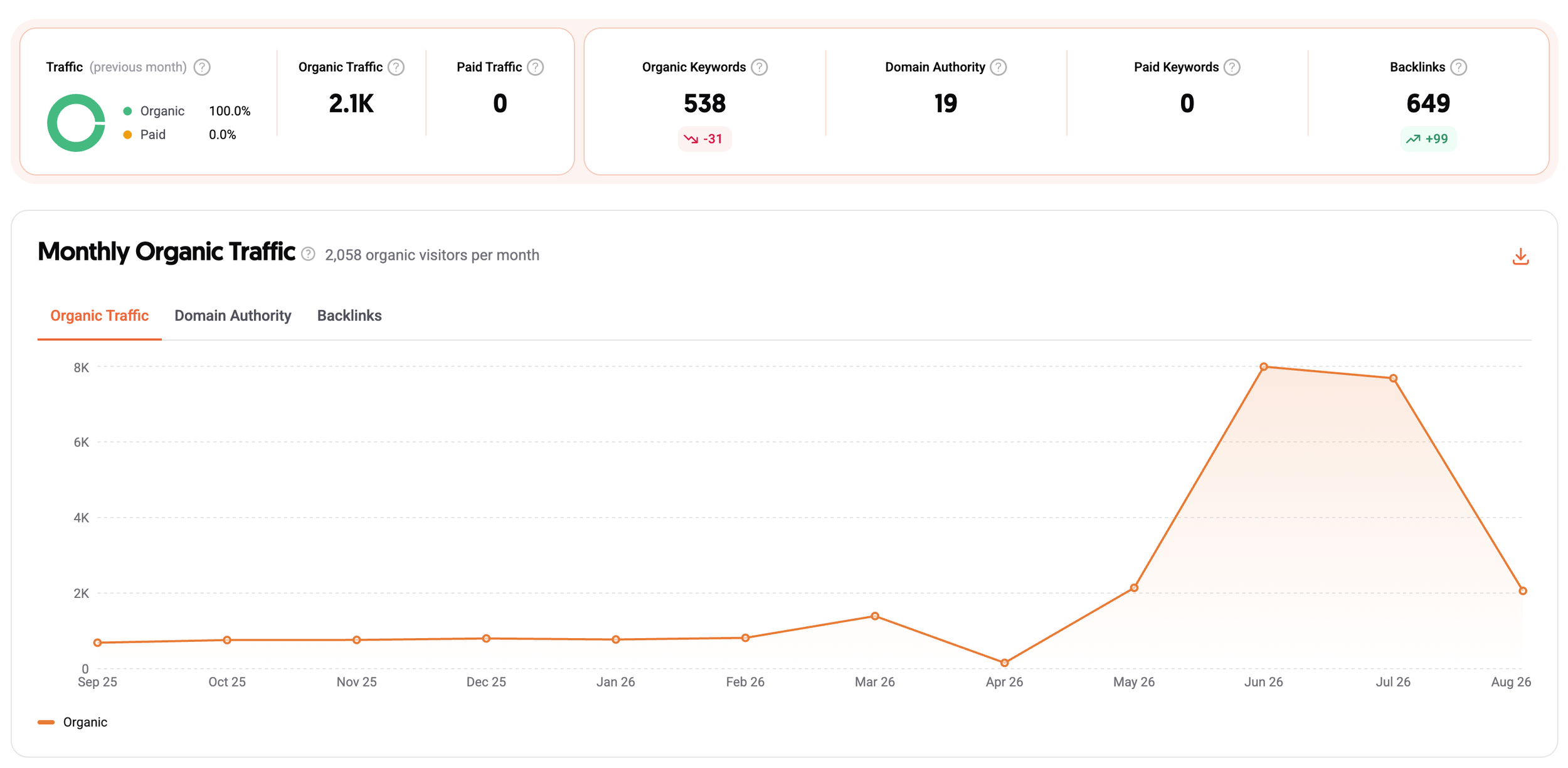
The venue launched its redesigned website at the end of April 2026. Ubersuggest’s traffic estimate rose sharply in May and June, then fell back to roughly its May level by August.
A wedding photographer moved to Showit, and her visibility almost disappeared
Here’s another case — a photographer I engaged with od Reddit, and who I offered a quick audit. The new site was beautiful: modern photography, sophisticated typography, careful layouts. Estimated organic traffic fell from roughly 80–130 visits a month in mid-2024 to almost nothing for several months, then recovered to around 20–30. What remained was mostly searches for the photographer's own name and specific venues.
Without her Search Console data or redirect history, I can't prove what caused the drop. Changed URLs, removed content and missing redirects are all plausible. But even a flawless migration wouldn't have helped much, because the new site gave Google and potential clients very little to go on beyond the portfolio. The copy was generic and the location information was thin.
This wasn't a Showit problem. The same thing happens on Squarespace and WordPress when a migration is treated as moving a design from one place to another.
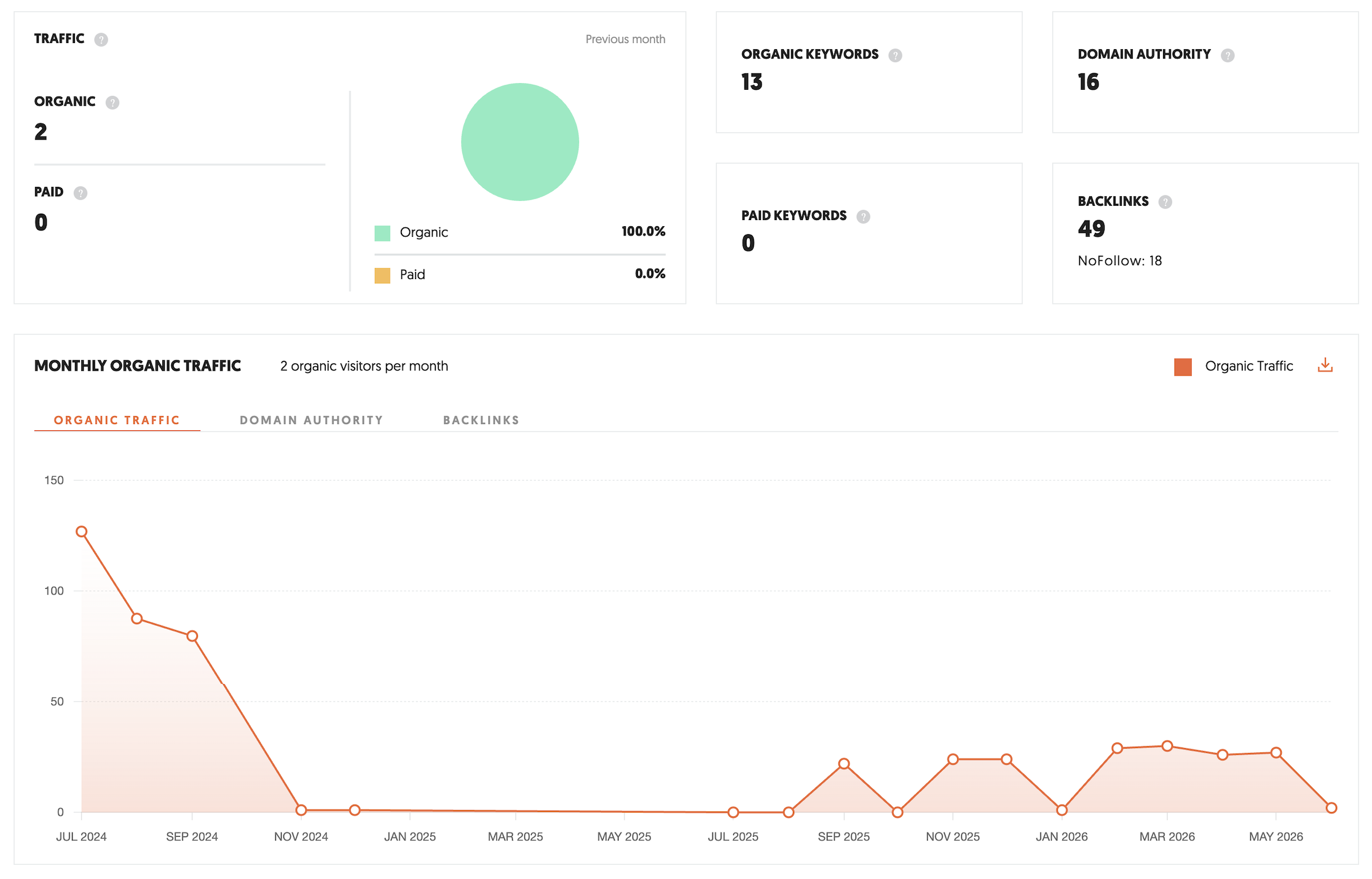
After the photographer moved to Showit, Ubersuggest’s traffic estimate stayed near zero for months. It briefly recovered to around 20–30 monthly visits before falling again.
Both businesses got a new look. Only one of them seems to have kept what the old site was already doing well. Before you redesign, find out which pages bring visitors, which searches they come from, what content earns its keep, and what isn't working. Otherwise you're deciding mostly on what looks good. And Google has never been particularly interested in how pretty your mood board is.
Make sure the new site converts better than the old one
You can keep every URL, hold your rankings, improve your PageSpeed score and launch a site that looks ten times better, and still get exactly the same number of inquiries. I've seen plenty of websites with gorgeous photography and careful art direction where, five minutes in, I still couldn't tell what the business offered, roughly what it cost, or what I was supposed to do next.
Before you change the layout, find out where people stop. Google Analytics 4 shows which landing pages lead to inquiries, bookings or purchases. Microsoft Clarity shows how people move through a page. Neither tells you why. A button nobody clicks may need a clearer offer behind it rather than a new color. Or the people reaching that page were never going to be customers.
Most of the time, visitors need more information, not more persuasion. Suppose you run a wedding venue, and your homepage talks about beautiful surroundings and memories that last a lifetime. Very nice. But couples are also trying to work out whether you can hold their guest count, what the packages include, and whether they can realistically afford you. A more elegant layout won't answer those questions.
The same applies to an inn, a planner or a professional service. Someone considering spending several thousand dollars is interested enough to take you seriously, and hesitant because they can't yet see the whole picture. A good redesign gives them clearer service descriptions, examples that match the project they have in mind, pricing guidance, a visible process, and an inquiry form that asks only for what you need. Bigger buttons and another section about how passionate you are won't do that.
And sometimes a redesign is the answer to a feeling more than a diagnosis. Inquiries have slowed, or the wrong people keep getting in touch, and the website is the most visible thing to blame. Before you spend money rebuilding it, it's worth finding out whether the website is actually the problem. That's what my Rabbit Hole Investigation is for. I dig into your website, your search visibility and how people find and choose you, and tell you what's getting in the way. Sometimes the answer is a redesign. Sometimes it's something a redesign wouldn't have touched.
I've also written more about this in Why Your Website Isn't Getting You Clients, and Why It Might Not Be a Website Problem.
Squarespace Redesign Checklist: before and after launch
Before the redesign
Decide why you're redesigning and what needs to improve.
Review your Google Search Console data.
List your important pages, queries and backlinks.
Make an inventory of existing URLs.
Record SEO titles, descriptions and other key settings.
Review analytics and conversions.
Choose your redesign method.
Back up important content and document integrations.
Decide which content to keep, improve, merge or remove.
During the redesign
Keep the existing site available where possible.
Hide working pages and development sites from search engines.
Keep valuable URLs and content.
Improve messaging, navigation and structure.
Plan 301 redirects for changed URLs.
Review SEO titles, descriptions and headings.
Update internal links.
Test desktop and mobile layouts, text contrast and image sizes.
Check page speed in Google PageSpeed Insights.
Test forms, booking tools and other integrations.
After launch
Turn off "Hide from search results" on every final page.
Submit your sitemap and inspect your top URLs in Search Console.
Test redirects and look for 404 errors.
Check canonical URLs on important pages.
Confirm analytics and conversion tracking work.
Go through the complete inquiry or purchase journey yourself.
Compare traffic, rankings and conversions with the old site.
Investigate unexpected drops.
Keep improving based on what visitors actually do.
FAQs about Squarespace website redesigns
-
Usually, yes. Most of the work can happen while your site stays live: on pages under Not Linked, on a duplicate site, or on a separate staging site. The only moment of disruption is the switch itself, when you transfer global styles or swap major pages. With page-by-page planning, that can be a few minutes per page, and if you do it overnight, hardly anyone will notice.
I wouldn't password-protect an established site for hours just to hide the transition. A password-protected site is invisible to potential customers and to search engines. Keep the site available, schedule the switch for your quietest hours, and test thoroughly afterward.
-
It can, in either direction. A redesign that keeps your URLs and the content that ranks is usually low-risk. The damage tends to come from changed URLs without 301 redirects, deleted pages, thinner copy on pages that used to rank, and development settings like "hide from search results" left switched on after launch.
-
Yes. Duplicate the site, build the redesign on the copy, then move your domain to it when it's ready. Blog comments, store orders and customer accounts don't come with the copy, so for sites that have them, building on a staging site and bringing the design back is usually safer.
-
Yes, as long as you only change page content. Build a new homepage under Not Linked, hide it from search, and use "Set as homepage" when it's ready. Changes to Site Styles, the header or the footer apply to every page, so leave those until the switch.
-
Not in the 7.0 sense. All 7.1 sites share the same underlying template, so "changing template" means changing styles, layouts and sections. You can do that inside your existing site. I've explained the workarounds in how to change your Squarespace template.
-
Start a new one only if the current site is small, has little search traffic, and holds no data you'd miss, like comments, orders or member accounts. If any of those exist, redesign inside the existing site, or use a staging site and bring the design back.
-
Not in one click, as far as Squarespace's own documentation shows. Blueprint AI helps you build a new site, and Squarespace's AI tools can write and edit copy on an existing one. Some third-party tools rebuild a site from its public pages. They don't bring across orders, customers or bookings, and they can't tell which pages matter for your search traffic.
-
A visual refresh of a small site can take a weekend. A redesign that includes an SEO audit, new copy, a restructured site and redirect planning usually takes a few weeks. Most of that time goes into deciding what the site should say, not into moving sections around.
-
Not for a visual refresh. Squarespace's tools and a good template will take you a long way. It's worth hiring help when the site has rankings you can't afford to lose, a lot of content to migrate, or when the real goal is more inquiries rather than a new look.
What are you hoping the redesign will fix?
You now know several ways to redesign a Squarespace website without disturbing the one you have. You can build pages under Not Linked, work on a staging site, start from a new template, and move things around until everything looks fantastic. Sometimes that's all you need. If your site attracts the right people and brings in steady business, and the design simply looks dated, a visual refresh is enough.
But if you're redesigning because the site isn't bringing enough inquiries, or the right ones, I'd be careful about starting with the visuals. A lot of redesigns replace the appearance of the old site and keep the problems underneath it. The same confusing offer, now with nicer typography. The same unanswered questions, now organized into prettier sections.
Sometimes the problem is the site's structure. Sometimes it's the messaging, the offer, search visibility or how customers experience the buying process. And sometimes the website isn't the problem at all.
So where you go next depends on which of these sounds like you.
Your site works, it just looks dated. Start from a Squarespace template. You'll get a finished design and a page structure that's already worked out, and you can bring it into your existing site with any of the methods above.
You know the site needs more than a new look. That's what my Squarespace website redesign service is for. It combines website strategy, customer psychology, SEO, content structure and design. We look at what's working, find out what's getting in the way, and redesign with a business goal in mind.
Something seems off, and you're not sure what. If inquiries have dropped or dried up and you can't tell whether it's the website, your search visibility or something else, start with a Rabbit Hole Investigation. You'll know what's wrong before you decide what to rebuild.
If you're going to invest in rebuilding your website, it should do more than give you something nicer to look at.

A beautiful wedding venue website is a good start. Helping couples choose you is even better.
Meadow & Timber is an editorial Squarespace 7.1 wedding venue website template designed to showcase your property, answer the questions couples are already asking, and turn genuine interest into enquiries.
Built specifically for wedding and event venues, it combines atmospheric photography, thoughtful page layouts, and a venue-specific copy guide that helps you explain everything from ceremony spaces and accommodations to packages, pricing, and the little details that make your property worth visiting.
You get a website that looks distinctive, works beautifully on mobile, and gives prospective couples more than pretty pictures to fall in love with.
VIEW LIVE DEMO →