Updated November 2026
Squarespace SEO is the work of helping Google (and now AI search tools) understand your Squarespace website well enough to show it to the right people. Squarespace already handles the technical basics: SSL, a sitemap, mobile layouts, clean URLs and some structured data. What it can't do is choose your keywords, write your titles or decide which of your pages deserves to rank. That part is yours.
This guide covers every setting that matters, in roughly the order I fix them on client sites. There's a quick checklist first if you're in a hurry, and a detailed walkthrough after it if you'd like to know why each step matters. Knowing why is what stops you from optimizing the wrong page beautifully.
I design and build Squarespace websites, and I spend an unreasonable amount of time inside Google Search Console looking at why some of those sites get found and others don't. I learned SEO the expensive way: about 13 years ago, in my first business, I got scammed by an SEO company, and I taught myself how search works while I was still paying them. (That story, and what it taught me, is at the end.) If you want proof that Squarespace can rank, here's how I got a blog post to #1 on Google in less than 24 hours.
Table of Contents
Is Squarespace good for SEO?
Yes. Squarespace gives you clean code, automatic sitemaps, SSL and full control over titles, descriptions and URLs, which is everything most small business websites need to rank. Where it falls short is advanced technical control, and that matters for very large or very complex sites, not for a typical service business. I go into the details (and the cases where WordPress makes more sense) in Is Squarespace Good for SEO? The Truth in 2026.
What Squarespace does for you, and what it leaves to you
Squarespace handles it automaticallyYou have to do itSSL certificate (https)Connect Google Search Console and Bing Webmaster ToolsAn XML sitemap at yoursite.com/sitemap.xmlChoose keywords for each pageMobile-friendly layoutsWrite SEO titles and descriptionsClean, static URLsFix random-character URL slugsStructured data for pages, blog posts, products and eventsAdd any extra schema (FAQ, LocalBusiness, reviews)Blog post titles formatted as the page's H1Structure the rest of the page with sensible headingsA built-in SEO panel, SEO report and AI metadata writerDecide whether the AI's suggestions are any goodRedirect old URLs when you change themWrite content that deserves to rankFill in your llms.txt file (optional)
The right-hand column is longer for a reason. A website builder can make SEO easier. It can't make it unnecessary.
The Squarespace SEO checklist
If you only have an afternoon, do these in order. Each one links to its full explanation below.
Step 1: Connect Google Search Console (and Bing)
Do this first, even before you touch a single title. Search Console is the only place that tells you what Google actually thinks of your site: which searches you appear for, which pages are indexed, and which ones Google has quietly decided to ignore.
Squarespace has a direct integration, so you don't need to paste any verification code. Connect it from your site's settings and Squarespace verifies the site for you.
[SCREENSHOT: connecting Google Search Console in Squarespace]
Submit your sitemap
Squarespace creates your sitemap automatically at yoursite.com/sitemap.xml and keeps it up to date. Google still needs to be told where it is. In Search Console, open Sitemaps, type sitemap.xml into the box and click Submit. Come back a day or two later and check that the status says "Success" and that the number of discovered pages looks roughly right.
[SCREENSHOT: Sitemaps report in Search Console]
You only need to do this once. The sitemap updates itself whenever you add or remove pages.
Request indexing every time you change something
The sitemap tells Google your pages exist. It doesn't make Google hurry. Whenever you publish a new page or post, or make a meaningful change to an existing one (new title, rewritten content, new section), ask Google to look at it:
Copy the page's full URL.
Paste it into the search bar at the top of Search Console (this is URL Inspection).
Click Request indexing.
It won't guarantee that Google indexes the page, or how quickly, but it usually moves you up the queue from "eventually" to "within days". Make it part of your publishing routine, right after you hit Save. It's also the first thing to do after a redesign, starting with your most important pages.
Then do the same with Bing Webmaster Tools. Bing's share of searches is small, but its index also feeds other search tools, including some AI assistants. It takes five minutes and almost nobody does it.
Once you're connected, your Squarespace analytics will also show a Search keywords panel with the queries people used to find you. Don't panic if it's nearly empty at first. Google needs time (and a reason) to start showing you.
Step 2: Site title, SEO site description and title formats
Site title
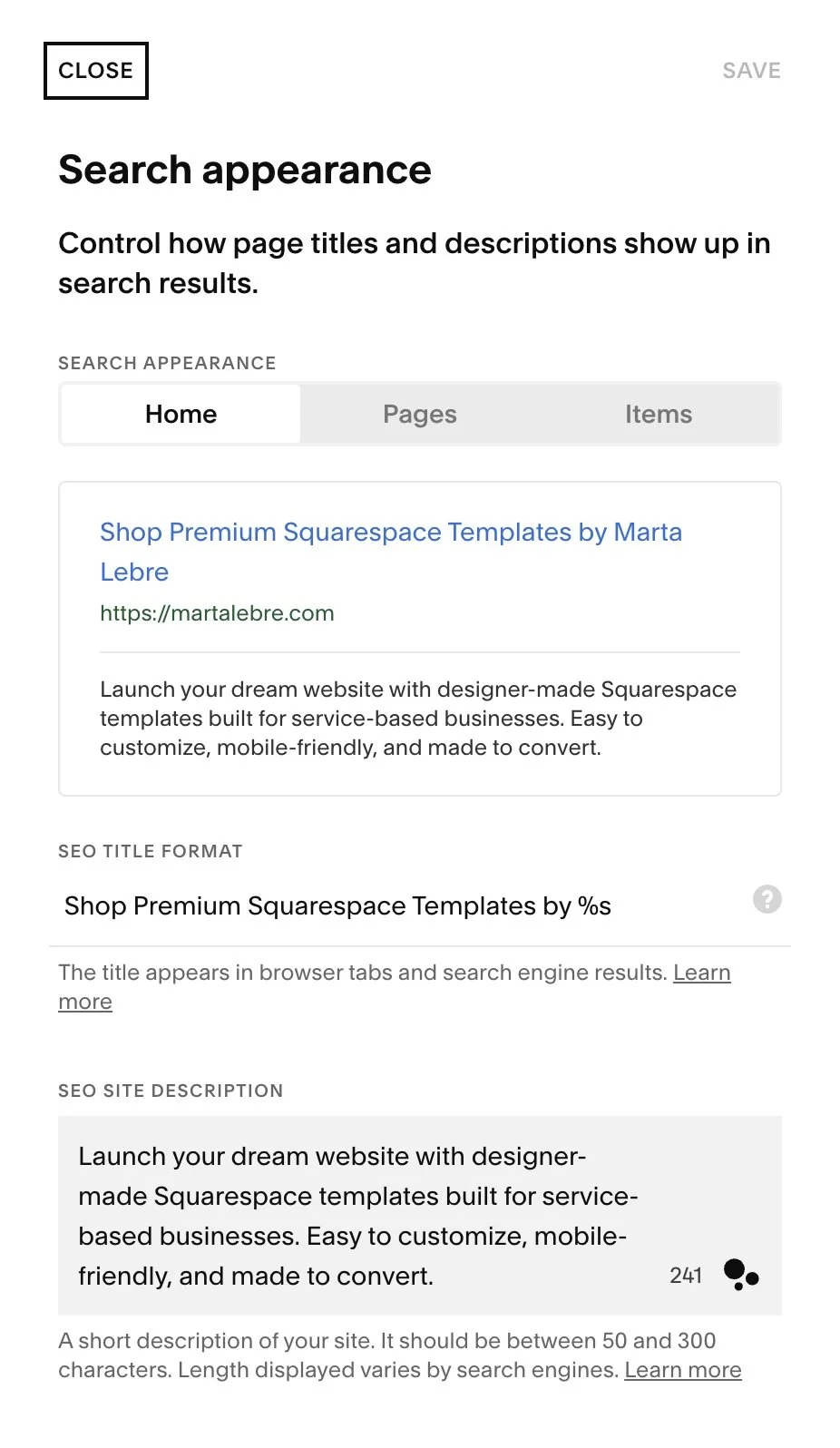
Add a site title even if your header uses a logo. Search engines can read the text. They can't read your logo. Keep it under 60 characters and make it say what you are, not only who you are.
SEO site description
This is the description that represents your homepage in search results. Squarespace accepts 50 to 300 characters, but Google usually shows around 150 to 160, so put the important part first.
Weak: "Welcome to our website! We're so happy you're here."
Better: "Family-run wedding venue in the Blue Ridge Mountains with an on-site chapel, lodging for 40 guests and all-inclusive packages."
Title formats
Squarespace lets you set default title formats for your homepage, your pages and your collection items (blog posts, products, events). These control what appears in browser tabs and search results when you haven't written a custom SEO title.
A sensible default is %p | %s for pages (page title, then site title) and %i | %s for blog posts and products (item title, then site title). Every page carries your brand, and the useful words come first.
[SCREENSHOT: title formats in the SEO panel]
Step 3: SEO titles and descriptions for every page
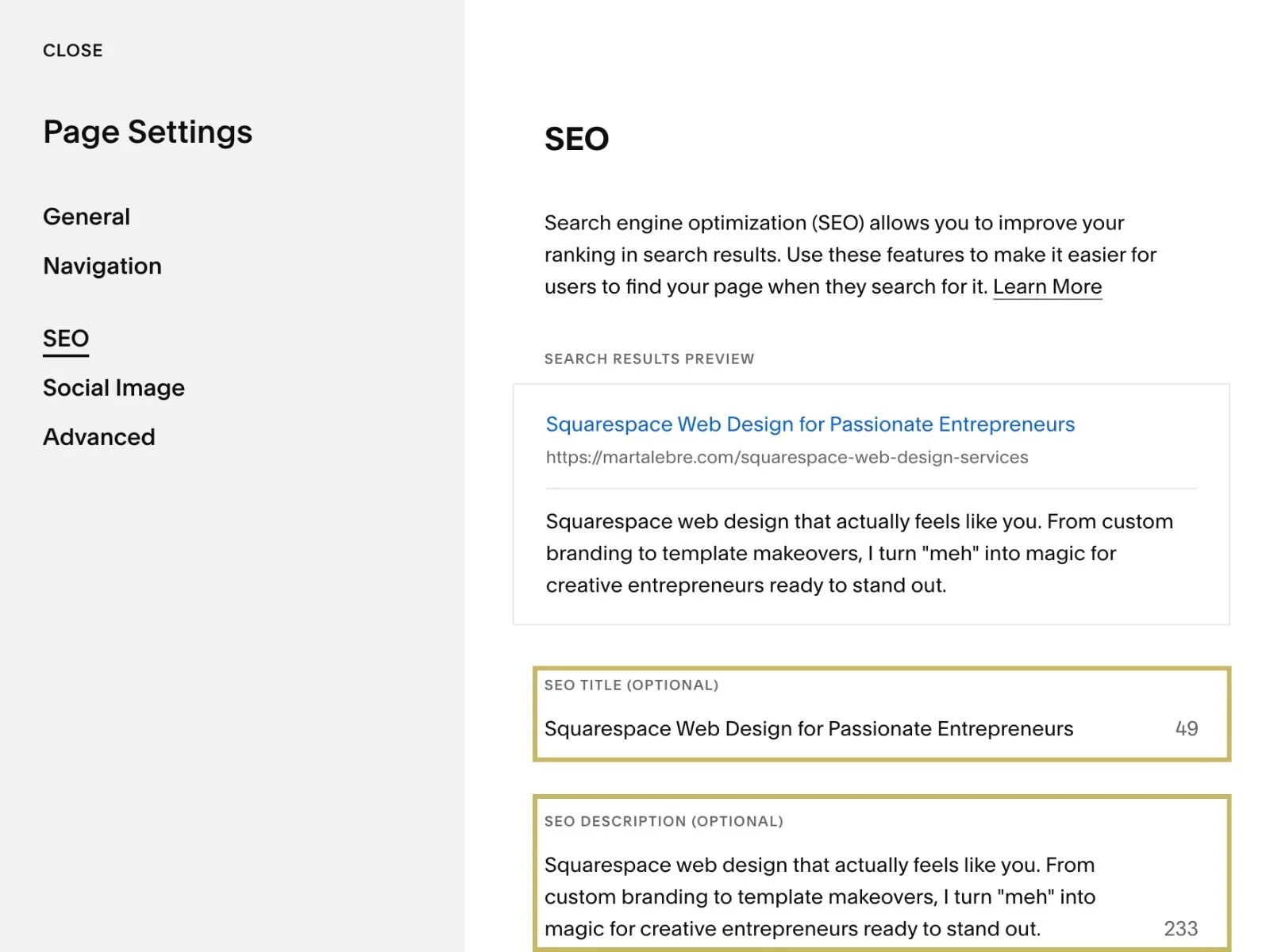
Every page on your site has an SEO title and an SEO description, which you'll find in that page's settings under SEO. Blog posts, products and events have them too.
SEO title: aim for 50 to 60 characters, with the main keyword near the beginning. This is the blue link people click in Google, so write it for a person first.
SEO description: aim for 150 to 160 characters. Google doesn't use it for ranking, but people use it to decide whether to click, so it's worth getting right.
Navigation title: this is separate. Keep it short ("About", "Services") because it only labels your menu.
What about Squarespace’s AI metadata writer?
Squarespace now offers AI-written SEO titles, descriptions and image alt text, and an SEO report that flags pages missing them. It's genuinely useful for spotting gaps. I would still read every suggestion before accepting it.
The AI can describe what's on a page. It doesn't know what your customers search for, which service is your most profitable one, or that "bespoke" is a word your clients never use. Treat its suggestions like a first draft from a helpful intern: grateful for the speed, responsible for the result.
Use the SEO report
On version 7.1 sites, the SEO report scans your whole site and lists pages without descriptions and images without alt text. Run it once now and again after any big update. It's the fastest way to find the pages you forgot existed.
Step 4: Clean up your URL slugs
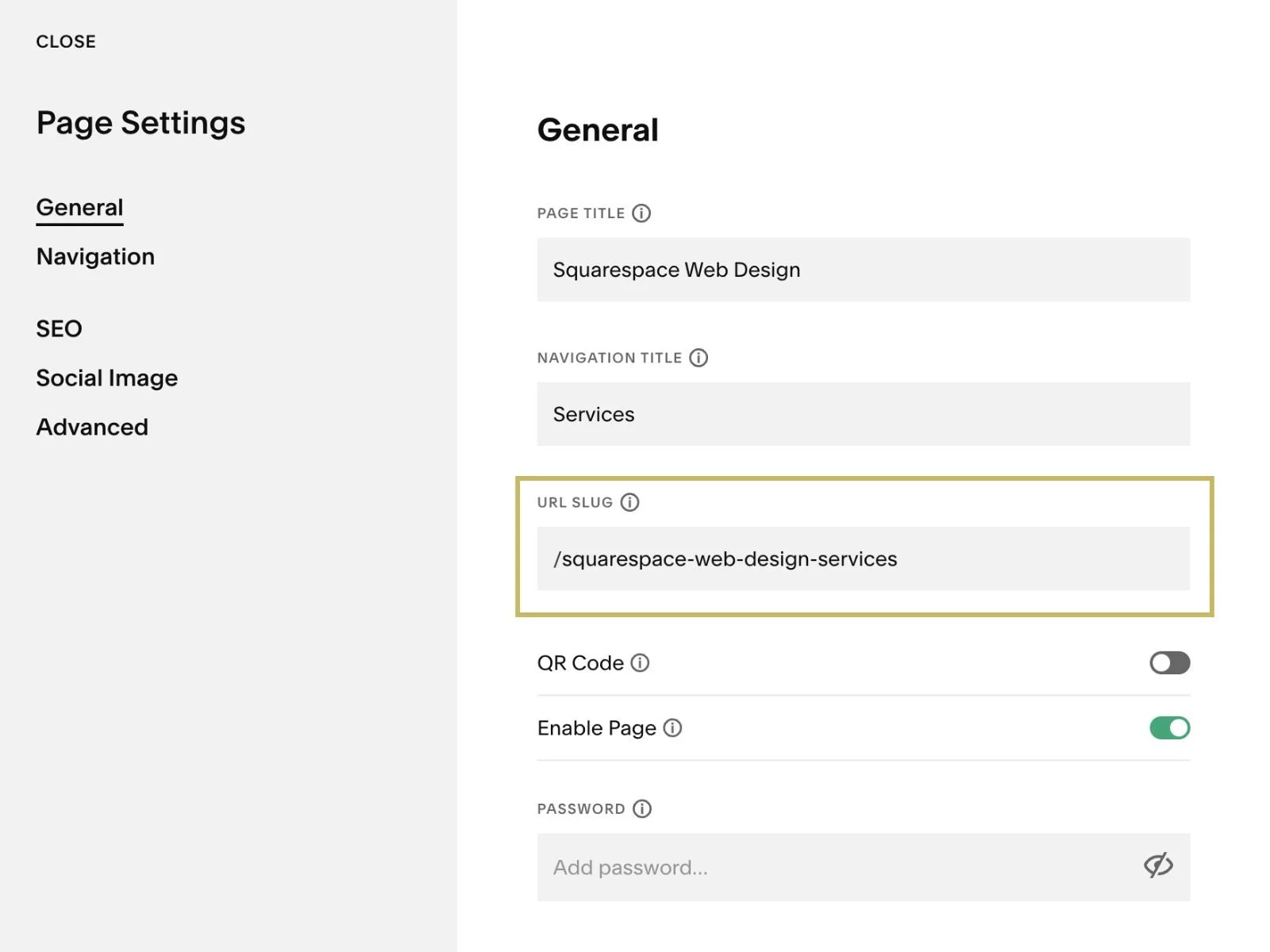
If you save a page, blog post or product before giving it a title, Squarespace creates a URL slug made of random characters. Google can live with it. Humans find it slightly alarming.
Keep slugs short, lowercase and descriptive:
/services/wedding-photography is better than /services-page-copy-2
/blog/squarespace-seo is better than /blog/2026/11/11/x7k2p-new-post
If you blog, also check your blog post URL format and make sure it includes the post title.
One warning: changing the slug of a page that already gets traffic breaks every link to it, unless you redirect the old URL (see Step 9).
Step 5: Check your headings
Squarespace formats a blog post's title as Heading 1 on all version 7.1 sites. On regular pages, the H1 is whatever text you've formatted as Heading 1. So:
Use one Heading 1 per page, and make it describe what the page is about.
Use Heading 2 for main sections and Heading 3 for subsections, in order.
Don't use headings to make text look big. A pull quote formatted as Heading 2 tells Google it's a section title.
Don't repeat the same heading text on one page.
It's very easy to end up with three H1s on a Fluid Engine page because the biggest font looked nicest. Check your homepage first. Homepages are where headings go to misbehave.
Step 6: Rename, describe and compress your images
Images are where a lot of Squarespace sites lose easy points.
Rename files before you upload them. IMG_4823.jpg tells Google nothing. blue-ridge-wedding-venue-chapel.jpg tells it quite a lot. Squarespace may use the file name as alt text if you don't add one.
Add alt text. Describe what's in the image, for people using screen readers first and search engines second. Include a keyword when it's naturally part of the description. Stuffing keywords into alt text doesn't help.
Compress them. Squarespace recommends keeping images under 500 KB and whole pages under 5 MB. A 9 MB hero photo is the most common reason a beautiful Squarespace site feels slow on a phone. I use TinyPNG before uploading.
Step 7: Optimize your blog posts
Blogging isn't compulsory, but it's the easiest way for a small website to show up for more than its own name. Traffic on its own pays nobody's bills, though. Before you write anything, ask: would the person searching for this ever need what I sell?
“Wedding venues with lodging near Asheville” brings in couples who are still choosing. “DIY wedding centerpiece ideas” brings in plenty of traffic, mostly from couples who booked a venue months ago — and from all English speaking countries. My own blog has a post about zodiac color palettes that looks great in Search Console and has never sent me a single inquiry xD
[LINK: once it's published, add "I go deeper into choosing blog topics that attract buyers in (new post)."]
For every post
Target one search intent, not one keyword. Pick a primary keyword for the post, then use its semantic variations (the other ways people phrase the same need) as secondary keywords. "Wedding venue with lodging", "wedding venues with on-site accommodation" and "barn wedding venue with cabins for guests" are one intent, so they belong in one post. "How much does a wedding venue cost" is a different intent and deserves its own post. If two of your posts answer the same intent, they end up competing with each other.
Write the SEO title and description in the post's settings, not only the visible title.
Add alt text to every image in the post. Describe what's actually in the photo, and use a secondary keyword only where it fits naturally ("couple exchanging vows in the meadow at sunset", not "wedding venue Asheville best wedding venue"). Step 6 has the details.
Add a social image. This is the image that appears when someone shares the post on Facebook, LinkedIn, Pinterest or in a message. You'll find it in the post's settings, under the Social Image tab. If you skip it, Squarespace falls back to another image, often your site's default sharing image, which is usually your logo. A logo on a white square doesn't make anyone want to click. A good photo from the post does.
Add an excerpt (optional). Squarespace shows it in blog listings and summary blocks, so it's worth writing if your blog page displays them. It doesn't affect rankings.
Use categories and tags. They help visitors (and search engines) understand how your posts relate to each other.
Link to related posts (more on this in Step 14) and to what you sell (below).
Update old posts. A post from 2022 that still gets impressions can often do better with an afternoon's work, without writing anything new.
Give every post a conversion path
A conversion path is the route from "this was useful" to "let's check availability". Without one, a reader finishes your post and goes back to Google. Every post needs:
A link to the matching service or booking page inside the text, at the moment the reader would ask "so where can I get this?". A pricing post leads to your packages page. A dog-friendly travel post leads to that cabin's booking page, not your homepage.
A specific call to action. "See our 2027 packages and prices" works much harder than "Learn more."
A destination that finishes the job: the page you link to should answer the question the post raised and have an inquiry form or booking button.
Step 8: Hide pages that shouldn’t be in Google
Not every page on your site should appear in search results. Squarespace lets you hide individual pages from search engines in each page's SEO settings.
Good candidates:
Thank-you and confirmation pages
Old landing pages from a campaign that ended
Duplicate or test pages left over from your template
Client-only pages (although these are better behind a password)
Blog tag and category pages
Thin, forgotten pages don't usually get you penalized, but they do give Google more pages to crawl and less reason to think your site is carefully looked after.
Also check: if your site was ever password-protected, or set to private while you were building it, make sure it's fully public now. That one setting is behind a surprising number of "why isn't my site on Google?" questions. If that's what brought you here, I wrote a whole post on why your Squarespace website isn't showing up on Google.
Step 9: Redirect any URL you change
Whenever you change a page's URL, delete a page that used to get traffic, or move from another platform, the old URL needs to point somewhere. Otherwise visitors land on a 404 page, and any ranking that URL had built up disappears with it.
Squarespace handles this with URL redirects (sometimes called URL mappings), in your site's developer settings. Each redirect goes on its own line:
/old-page -> /new-page 301
/blog/old-post-title -> /blog/new-post-title 301
/services-old -> /services 301
301 tells Google the move is permanent and passes the old page's value to the new one. Use 302 only for genuinely temporary moves.
[SCREENSHOT: URL redirects panel]
While you're there, customize your 404 page with links to your most important pages. Squarespace lets you choose which page appears when a link is broken, and a helpful 404 page keeps visitors on your site instead of sending them back to Google.
Redirects matter most during a redesign or a platform move. That's where I see the most rankings lost, usually by accident and usually without anyone noticing for three months. If you're planning one, read the section on redesigning without losing rankings below first.
Step 10: Add schema where it helps
Schema markup is code that tells search engines exactly what a page contains: a business, an FAQ, a product, an event. Squarespace adds basic structured data automatically for pages, blog posts, products and events.
For most service businesses, the extras worth adding are:
LocalBusiness (or a more specific type, such as LodgingBusiness for a vacation rental or EventVenue for a wedding venue) on your homepage or contact page
Person, if you're a personal brand, on your homepage or About page. Include your name, job title, photo and links to your profiles elsewhere (LinkedIn, Instagram, podcast guest pages) in sameAs. This helps Google and AI tools connect you, your website and everything written about you as one person.
Service on each service page: what the service is, who provides it, the area you serve and, if you publish it, the starting price. A venue's "Wedding packages" page and a designer's "Website redesign" page are both good candidates.
FAQPage on pages with a genuine FAQ section
Article details on important blog posts, with the author linked to your Person schema
Person and Service schema don't produce special-looking search results the way FAQ or review markup sometimes does. Their job is to make it unambiguous who you are and what you sell, which is exactly the information AI tools try to pin down before they recommend anyone. As always, the schema has to match what's visible on the page. A price in your schema that doesn't appear anywhere on the page is a mismatch, not a shortcut.
You add these with a code block or in the page header code injection. I've written a step-by-step walkthrough here: How to Add Schema Markup in Squarespace.
Step 11: Make your pages lighter
Squarespace hosting is fast. Squarespace sites are slow when we fill them with heavy things. The usual culprits:
Uncompressed images (see Step 6)
Autoplaying background videos, especially on mobile
Several embedded widgets from third-party tools on one page
Too many custom fonts and font weights
Long galleries loading dozens of full-size images
Test your most important pages with Google's PageSpeed Insights. Don't chase a perfect score. Look for the one or two problems the report flags in red, and fix those.
Step 12: Set up your Google Business Profile
If you serve customers in a specific area, your Google Business Profile often shows up before your website does, especially in map results. It's separate from Squarespace, it's free, and for local businesses it can matter more than anything else on this list.
Make sure your business name, address, phone number and hours match what's on your website exactly. Add your address and a map to your contact page, and to your business information in Squarespace's settings.
For more on local search, see my guides to wedding venue SEO and vacation rental SEO. The principles carry over to most local businesses.
Step 13: Check your AI search settings
More people now ask ChatGPT, Gemini, Perplexity or Google's AI Overviews before they click any website. Squarespace has started building for this:
AI Visibility tracks whether ChatGPT and Gemini mention you when people ask about businesses like yours (more on this below).
llms.txt gives AI tools a short summary of your site (also below).
Crawler settings let you choose whether AI companies' crawlers can access your site. If you want AI tools to recommend you, they need to be able to read you. Check this panel before you spend any time on the rest of this step.
[SCREENSHOT: AI Visibility dashboard / Crawlers panel]
Track your AI prompts with AI Visibility
Search Console tells you what people typed into Google. Until recently, nothing told you what ChatGPT says when someone asks it to recommend a business like yours. Squarespace's AI Visibility tool fills part of that gap.
You'll find it in the SEO/AI Visibility panel, next to your SEO report. Once it's switched on, it works like this:
It suggests prompts. Squarespace generates up to 12 questions based on your site and industry, written the way someone might ask an AI assistant.
You edit them. Delete the vague ones and add the questions your clients actually ask.
It runs them through ChatGPT and Gemini and marks each prompt Mentioned or Not mentioned, split into branded prompts (your name is in the question) and non-branded ones (it isn't).
It shows who appeared instead, and which sources the AI relied on for its answer: directories, blogs, review sites, press articles.
It tracks changes over time, so you can see whether your updates make a difference.
[SCREENSHOT: AI Visibility dashboard with prompts and sources]
The non-branded prompts are the ones that matter. Of course ChatGPT mentions you when someone asks about you by name. The real test is whether you appear when someone doesn't know you exist yet. Good prompts sound like a person with a decision to make:
"Wedding venues near Asheville with on-site lodging for guests"
"Barn wedding venue in North Carolina under $15,000"
"Pet-friendly cabin rental with a hot tub in the Smoky Mountains"
"Vacation rental in Lisbon for a family of six with parking"
The sources list is the most useful part. If ChatGPT recommends three competitors and cites a regional wedding directory, a "best venues" roundup from a local magazine and a Reddit thread, that's your to-do list. You may need to be listed there more than you need another blog post. AI tools often build their answers from what other websites say about you, not only from your own site.
A few things to keep in mind:
It only covers English, version 7.1 sites, and only ChatGPT and Gemini.
It's included in your plan but uses AI credits to run prompts. How many you get depends on your plan.
AI answers vary from one run to the next, so treat a single result as weather, not climate. Look at the trend over a few months.
Squarespace suggests checking monthly and giving changes a week or two to show up. That matches what I'd expect.
Should you fill in your llms.txt file?
Squarespace 7.1 sites can now publish an llms.txt file: a short plain-text summary of your business, written in Markdown, that lives at yoursite.com/llms.txt. The idea is to give AI tools a tidy overview of who you are and which pages matter, rather than leaving them to piece it together from your navigation and footer.
To add one, open the SEO/AI Visibility panel, click SEO Settings, then the LLMS.txt tab. It's switched off until you add text. Paste your content in, save, and it goes live.
[SCREENSHOT: SEO Settings > LLMS.txt tab]
A word of caution before you spend an afternoon polishing it. llms.txt is a proposed standard, not an agreed one. Google has said it doesn't use it, and there's very little evidence that the big AI tools read it regularly. Squarespace itself says it can't give specific advice on what to put in it. I have one on my own site because it takes twenty minutes and can't hurt, but it won't fix anything Steps 1 to 12 haven't.
If you write one, keep it short (Squarespace suggests under 2,000 characters) and factual: what you are, where you are, who you serve, what you offer, and links to your most important pages. Make sure every detail matches your website and Google Business Profile, especially prices. Here's an example for a fictional wedding venue:
# Willow Creek Farm

> Willow Creek Farm is a wedding and event venue near Asheville, North Carolina, with a restored 1920s barn, an outdoor ceremony meadow and on-site lodging for 40 guests.

## Weddings
- Capacity: up to 180 guests (barn), 220 (meadow ceremony)
- Season: April to November
- Packages start at $9,500 for Friday and Sunday weddings
- Lodging: 12 cabins and a farmhouse, bookable for the whole weekend

## Key pages
- [Weddings and packages](https://willowcreekfarm.com/weddings): pricing, what's included, availability
- [Lodging](https://willowcreekfarm.com/lodging): cabins, farmhouse, sleeping arrangements
- [Gallery](https://willowcreekfarm.com/gallery): real weddings by season
- [FAQ](https://willowcreekfarm.com/faq): catering, alcohol, rain plans, vendors
- [Contact and tours](https://willowcreekfarm.com/contact): book a tour
The same structure works for a vacation rental (property type, location, sleeping capacity, amenities, booking page) or any service business. If you'd rather skip it, skip it. Your actual pages matter far more.
What actually makes AI tools cite a page is mostly what makes Google rank it, with a few emphases:
Answer the question in the first two sentences under each heading, then explain. AI tools lift clear, self-contained answers.
Use headings that match real questions, such as "How long does Squarespace SEO take?"
Be specific. Prices, locations, numbers and named features are far easier to quote than "we offer bespoke solutions tailored to your needs."
Be consistent everywhere. If your website says one price and your Google Business Profile says another, AI tools will happily quote either. Usually the wrong one.
Build related content. A site with several connected posts on one subject looks more like an authority than a site with one good post.
None of this replaces Steps 1 to 12. AI search mostly reads the same signals, just with less patience.
Step 14: Link your pages to each other
Internal links tell Google which pages are related and which ones matter most. They're also the most underused free SEO tool on Squarespace.
Link from each blog post to the service, product or booking page it supports. This is the conversion path from Step 7, and it also tells Google which of your pages matters most commercially.
Link from service pages to the posts that answer common questions about that service.
Use descriptive link text. "Our wedding photography packages" says much more than "click here."
When you publish something new, go back to two or three older related posts and link to it from them.
How to choose keywords for a Squarespace site
Everything above is about where keywords go. This is about which ones.
Start with how your clients describe what they want, not how you describe what you offer. A vacation rental owner might call their place "a self-catering mountain retreat." Their future guest types "cabin with hot tub near Asheville." Google rewards the second one, because that's what people search for.
A simple process:
List what each page is for. One page, one search intent: the single need the person searching is trying to meet.
Type the obvious phrase into Google and look at what autocomplete suggests and what "People also ask" shows. That's free research.
Check the search results themselves. If the first page is full of directories, marketplaces or YouTube videos, a small business page may not be what Google wants for that phrase, whatever its search volume.
Use a keyword tool for volume and difficulty. Ubersuggest, LowFruits and AnswerThePublic are good starting points.
Prefer specific phrases. "Wedding venue with lodging in Asheville" is easier to rank for, and far more likely to bring an actual inquiry, than "wedding venue."
Choose one primary keyword and a handful of secondary ones. The primary keyword is the clearest, most-searched way of phrasing the intent, and it goes in your SEO title, H1 and URL. The secondary keywords are its semantic variations: synonyms, longer versions and the questions people ask on the way. For a vacation rental page, the primary might be "pet-friendly cabin Smoky Mountains", with "dog-friendly cabin rental Gatlinburg" and "cabins that allow dogs near Pigeon Forge" as secondaries. Use those in your H2s, body text and image descriptions. Google understands they mean the same thing, and covering them naturally tells it the page answers the whole question.
Where each keyword goes in Squarespace
PlaceHow to use the keywordSEO titlePrimary keyword near the beginning, onceSEO descriptionOnce, naturallyHeading 1In the main heading, worded for peopleFirst paragraphEarly, in the first sentence or twoHeading 2sSecondary keywords and related questionsURL slugThe short versionImage file names and alt textOnly where it describes the imageInternal link textFrom other pages pointing to this one
If you want worked examples, I've written keyword guides for vacation rentals and wedding venues.
Squarespace SEO tools and plugins
You don't need a stack of subscriptions. This is what I actually use:
Google Search Console: free and essential. It shows what you rank for and what's broken.
Squarespace's SEO panel and SEO report: for finding missing titles, descriptions and alt text.
Squarespace Analytics: for traffic, popular content and search keywords at a glance.
Google Analytics 4: for deeper tracking. Squarespace's built-in GA4 setup has some quirks, which I explain in why your GA4 numbers don't match on Squarespace.
Ubersuggest, LowFruits and AnswerThePublic: for keyword ideas.
TinyPNG: for compressing images.
Do you need a Squarespace SEO plugin?
Not to cover the basics. Everything in this guide can be done in Squarespace itself. A plugin helps when you have a lot of pages and want to see and fix SEO across all of them without clicking into each one.
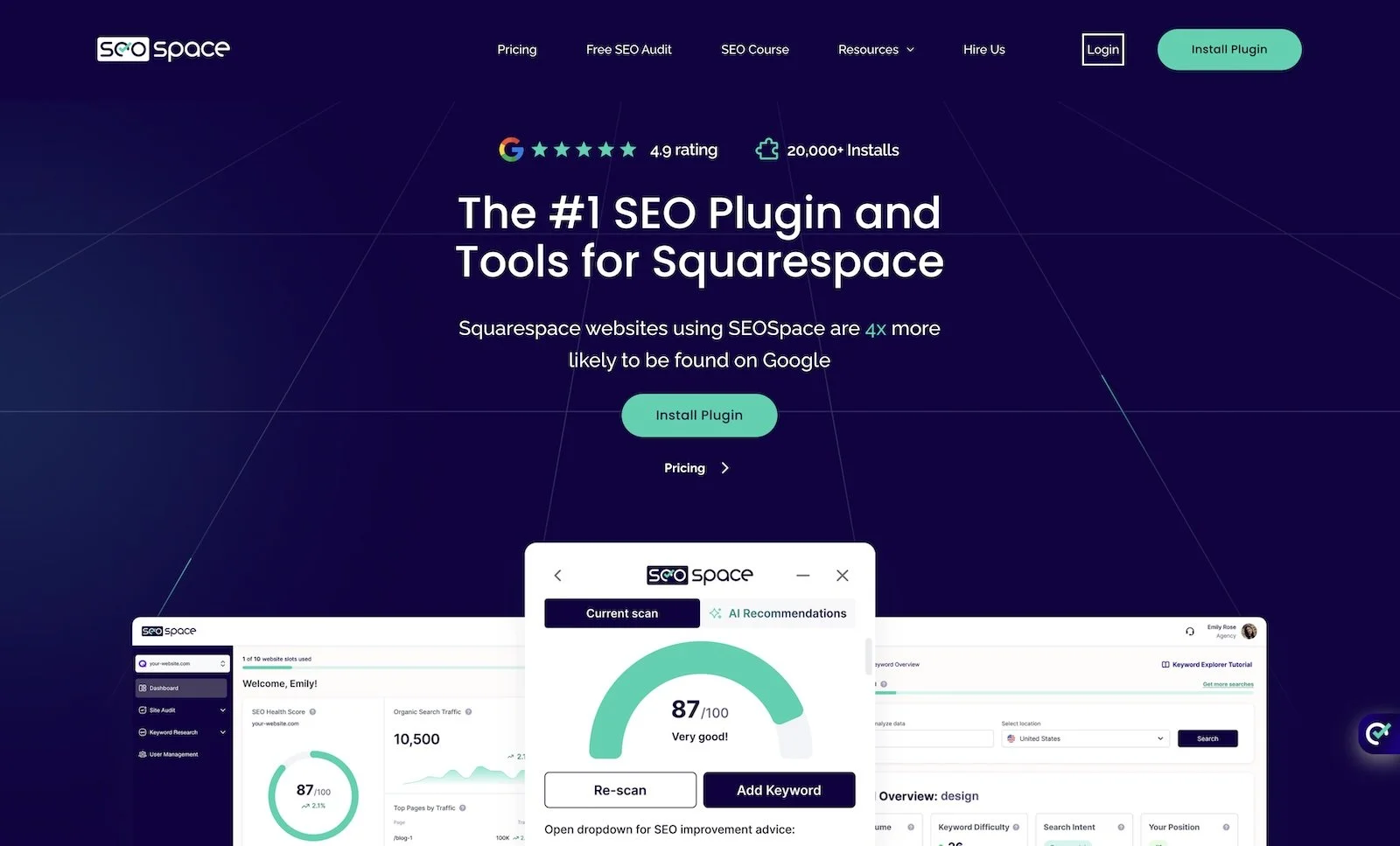
The one I recommend is SEOSpace, which is built specifically for Squarespace. It lets you edit titles and descriptions in bulk, flags missing metadata, and gives you page-by-page suggestions. (I'm an affiliate, which means I earn a commission if you sign up through my link. I only recommend it because I use it.)
Common Squarespace SEO mistakes
These are the ones I see most often on Squarespace sites:
The site is still private or password-protected months after launch.
Important text lives inside images. Headlines and price lists designed in Canva look lovely and are invisible to Google. Use real text.
Every page has the same SEO title, usually the business name, because nobody filled in the field.
Blog posts with random-character URLs because they were saved before they had a title.
No redirects after a redesign, so years of rankings point to 404 pages.
Several Heading 1s on the homepage, chosen for their font size.
Alt text left blank, or filled with a string of keywords.
No internal links, so every blog post is an island.
Blog posts that never mention what you sell. Helpful, popular and commercially invisible.
Posts written for an audience that will never buy, chosen because the keyword tool showed a big number.
Optimizing for a keyword nobody searches, or one that brings in the wrong people, or one you could never realistically win. This is the expensive one, and it gets its own section at the end.
Changing templates or redesigning without losing rankings
A redesign is the single most dangerous moment for a website's SEO, and the danger usually has nothing to do with design. It comes from URLs that disappear, pages that get merged or deleted, and titles and descriptions that don't survive the move.
Before you change anything:
Export your top pages from Search Console: the ones with the most clicks and impressions over the last 12 months.
Keep those URLs if you can. If you can't, redirect each one to its closest new equivalent (see Step 9).
Copy the SEO titles and descriptions of those pages before you rebuild them.
Keep the content that ranks. A page ranking for something valuable can often be redesigned around its words rather than rewritten from scratch.
After launch, request indexing in Search Console and watch your impressions for the next few weeks.
If you're switching templates in Squarespace 7.1, here's how changing your Squarespace template actually works. If you're coming from another platform, my Showit vs Squarespace comparison covers switching without losing rankings. And if you'd like to see what can happen to search visibility after a redesign, I took one apart in this wedding venue case study.
Every Squarespace website redesign I take on starts by mapping the pages that already bring in search traffic, so nothing that works gets lost along the way.
FAQ: Squarespace SEO
How long does it take for a Squarespace site to rank on Google?
A new page can be indexed within days once you've connected Search Console and requested indexing. Ranking well usually takes three to six months, depending on how competitive the search is, how established your site is, and whether other websites link to you. A highly specific post on an established site can rank much faster. My Squarespace SEO case study shows a post reaching #1 in under 24 hours, but that's the exception rather than the rule.
Is Squarespace bad for SEO?
No. Squarespace covers the technical foundations most small business sites need. It's less flexible than WordPress for very large sites or advanced technical SEO, which I compare in detail in Squarespace vs WordPress.
Do I need a Squarespace SEO plugin?
No. You can do all the essential SEO work inside Squarespace. A plugin like SEOSpace saves time if you manage a lot of pages.
Is SEO dead in 2026?
No, but it has changed. More searches end in an AI answer or a map result, so fewer people click through to websites. The sites that still get clicks (and get cited in AI answers) are the ones that answer specific questions clearly and are clearly trusted. That's what SEO was supposed to be about all along.
Does Squarespace support llms.txt?
Yes, on version 7.1 sites. You'll find it in the SEO/AI Visibility panel under SEO Settings, in the LLMS.txt tab. It's off by default and goes live at yoursite.com/llms.txt once you add text. It's optional, and there's little evidence yet that AI tools rely on it (see Step 13).
Can I see whether ChatGPT recommends my Squarespace site?
Yes. Squarespace's AI Visibility tool runs prompts through ChatGPT and Gemini and shows whether your business is mentioned, which competitors appear instead and which sources the AI used. It's available on English, version 7.1 sites and uses your plan's AI credits (see Step 13).
What if I don't want to blog?
You can still rank with a well-structured homepage, strong service pages and useful FAQ pages. Blogging helps you show up for more questions, but a small site with five excellent pages can outperform one with fifty forgettable posts.
Can I do Squarespace SEO myself, or should I hire someone?
Most of this guide is very doable yourself if you have the time. If you'd rather someone else fixed the settings, titles, slugs and redirects, that's the kind of work I do through Squarespace website help. If you suspect the problem goes deeper than settings, here's how I work as a Squarespace SEO expert now, and why I no longer sell SEO as a standalone package.
Final thoughts: the settings are the easy part…
I didn't learn SEO because I found it fascinating. (That came later.) I learned it because, about 13 years ago, in my first business (insurance agency), I got scammed by an SEO company. I couldn't get out of the contract, so I kept paying them every month while I worked out on my own how search actually works.
Their method was simple. They asked me what I wanted to rank for, and then they tried to rank me for whatever I said.
That sounds like good customer service but it was the whole problem. I didn't know what I should rank for, which is presumably why I'd hired them. I picked phrases that sounded right to me, and some of them were searches where page one belonged to businesses I had no chance of competing with. No amount of monthly reporting was going to change that.
Everything in the checklist above matters. But none of it helps if it's pointed at the wrong search. Before I optimize anything now, I want answers to three questions that company never asked.
1. What does the person searching actually want?
The same words can hide very different intentions. Someone searching “wedding venues Asheville” is comparing places to get married. Someone searching “how much does a wedding venue cost” wants to understand prices before they compare anything. Both are your future clients, but they need different pages.
The quickest way to find out what Google thinks a search means is to look at what it shows. If page one is full of blog posts and guides, Google has decided that people want to learn something, and your sales page is in the wrong room.
2. Who are you actually competing against?
Your competitors in business aren't always your competitors in search. For a lot of wedding and vacation rental searches, page one is The Knot, WeddingWire, Zola, Airbnb, Vrbo, a Reddit thread, a YouTube video and an AI Overview. The venue down the road might not be there at all.
Search for your target phrase in a private browser window and write down what's on page one. That list is who you're up against, whether you like it or not.
3. Can you realistically win?
This is the question that would have saved me a lot of money. If page one belongs to national directories and marketplaces with millions of links pointing at them, a small Squarespace site isn't going to push them aside, however well you fill in your SEO titles.
You can usually win a narrower search instead, one where page one shows businesses like yours. "Wedding venues" is a lost cause for almost everyone. "Barn wedding venue with on-site lodging near Asheville" might be yours. Fewer people search for it, but they're much closer to booking. The same goes for "cabin rentals" versus "pet-friendly cabin with hot tub in the Smoky Mountains."
Smaller numbers, better people. I'll take that trade every time.
When the settings are fine and you still don’t rank…
If you've done all of the above and search still isn't bringing you inquiries, the problem is rarely Squarespace. It's usually one of these:
The demand isn't there. Fewer people search for what you sell than the keyword tool suggested, or they search for it in words you don't use.
Google wants a different kind of page. If the results are all directories, marketplaces or comparison articles, a service page may never be what Google shows for that search.
You're ranking for the wrong thing. A page can get plenty of impressions for a search that has nothing to do with buying from you. That looks like success in a report and changes nothing in your inbox.
People find you and don't choose you. Sometimes traffic was never the problem. Visitors arrive, read and leave without inquiring, and more SEO won't fix that.
Your site doesn't have enough authority yet. New sites with few links from other websites can take months to compete, however well they're optimized.
Each of these needs a different fix, and the wrong fix is expensive (ask me how I know). That's why I start with evidence before recommending any SEO work. If you've worked through this guide and Google still isn't sending you the right people, a Rabbit Hole Investigation is built for exactly this. I look at your Search Console data, the search results you're competing in and your website, to find the real bottleneck before you spend money fixing the wrong thing.
Where to start
If this felt like a lot, start with three things this week: connect Search Console, check that your site isn't hidden from search engines, and Google the five phrases you most want to rank for to see who's really on page one. Then write proper SEO titles for your five most important pages, aimed at the searches you can actually win.
If you're building a new site and want the SEO decisions made before the design starts, that's how every custom Squarespace website I build begins: the page structure is planned around what your clients actually search for. And if your strategy and copy are ready and you just want a professional site live, template customization starts at $1,800. It includes filling in SEO titles, descriptions and image alt text, so the basics in Steps 2, 3 and 6 are done for you. It doesn't include keyword strategy or copywriting.