Squarespace & Google Analytics: Why Your Numbers Don’t Match & How to Set Up GA4 the Right Way
If you’re reading this because your Google Analytics (GA4) data looks completely different from your Squarespace analytics, you’re not alone. This is one of the most common issues I see among Squarespace users—especially those who rely on data to make decisions about their website or online shop.
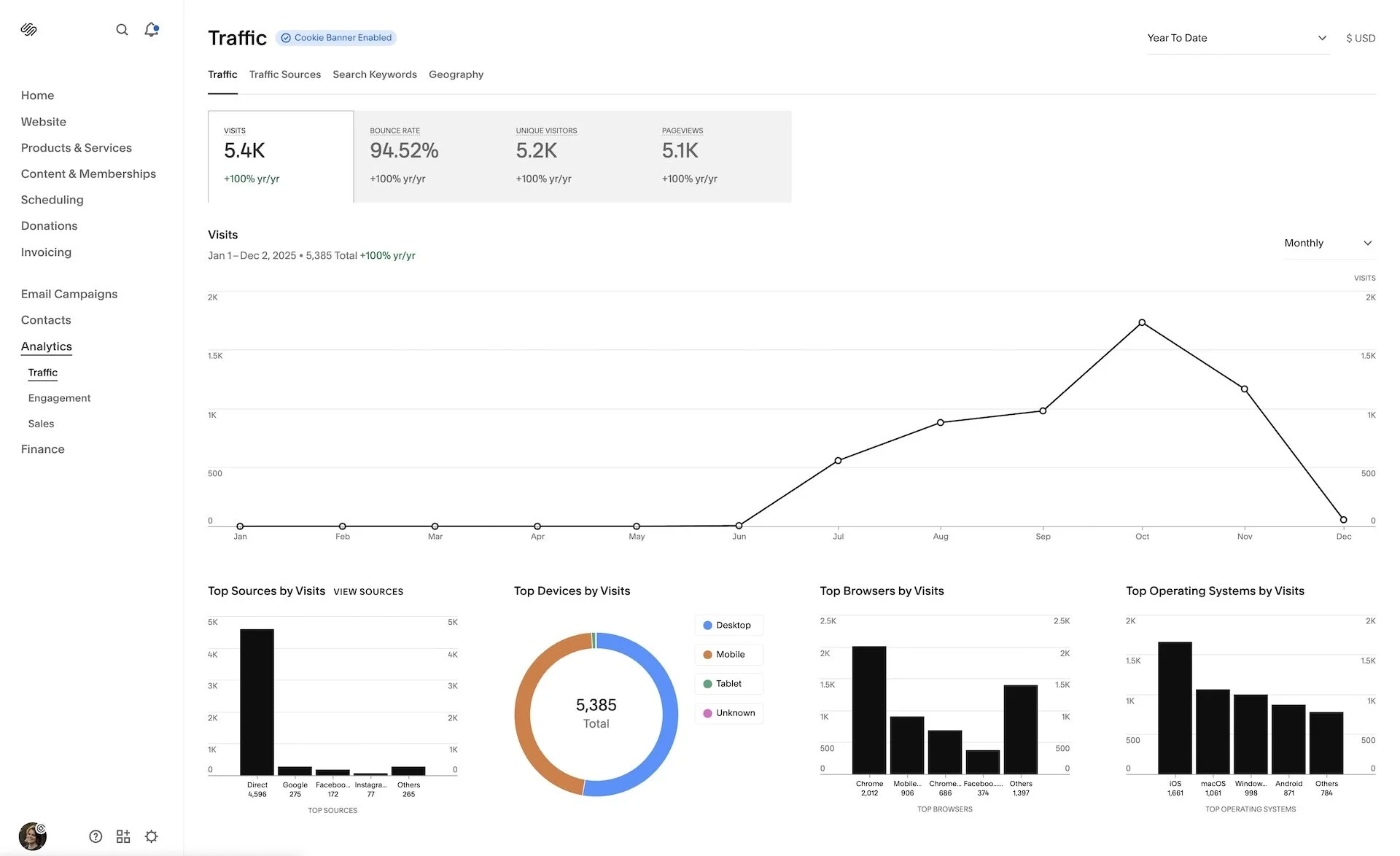
Recently, I worked with a client who was concerned about their conversion. As I started digging into the numbers, I realized that the Squarespace dashboard showed over 5,400 unique visitors, while GA4 showed only 446 sessions for the same time period.
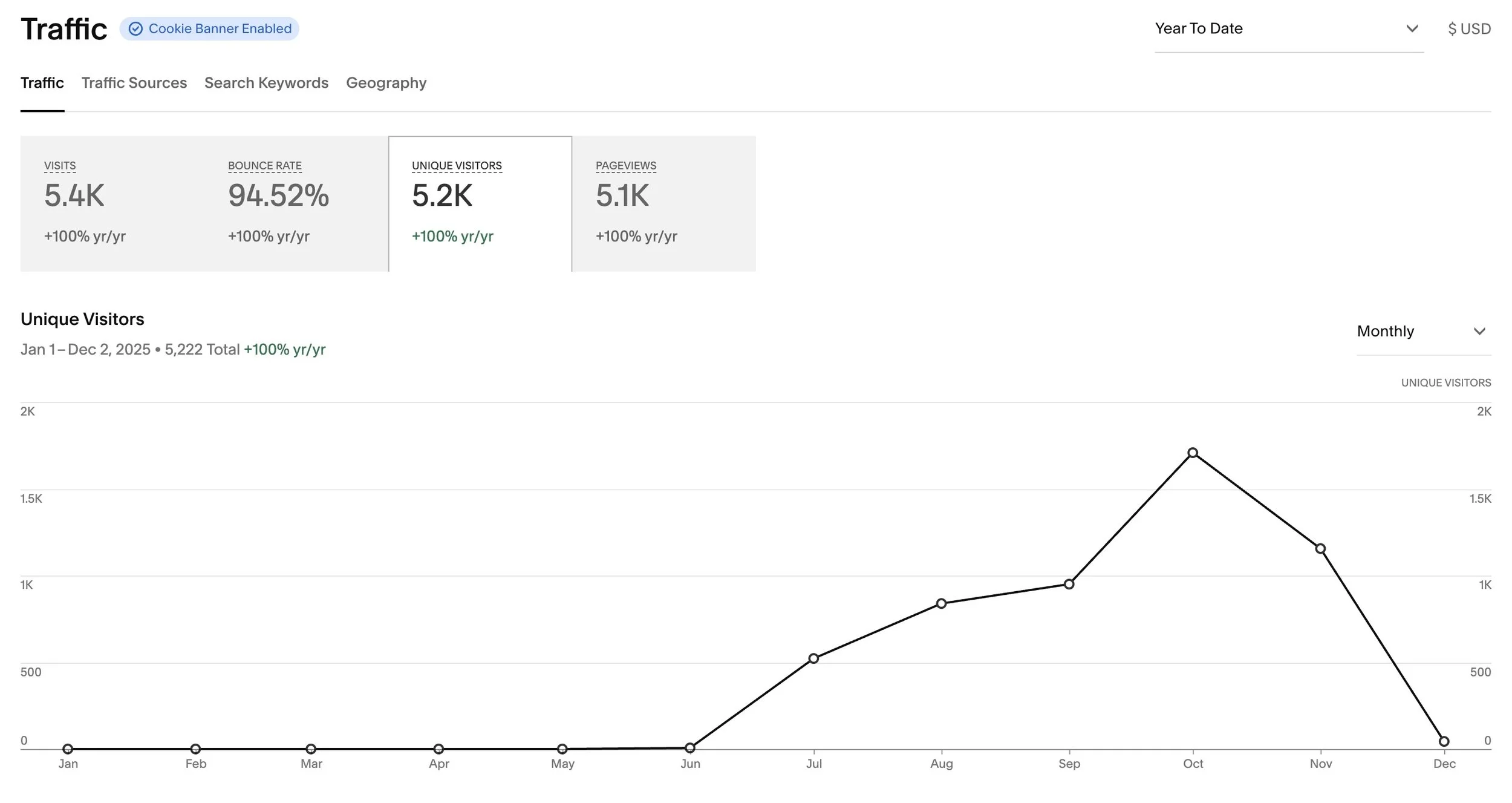
Squarespace analytics: 5.2k unique visitors
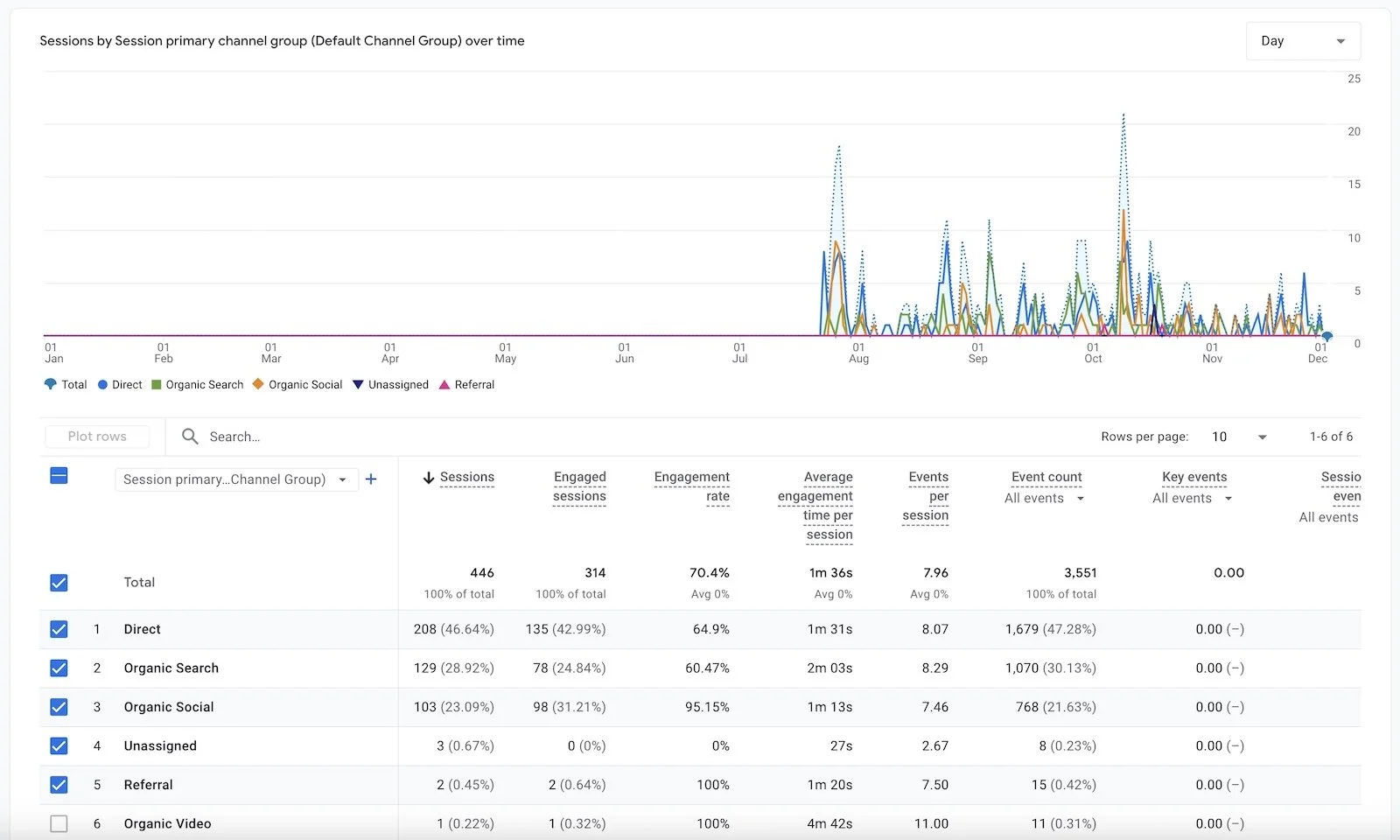
Google Analytics: 446 sessions…. something’s not right.
Understandably, they were concerned that something was broken or that their traffic had suddenly disappeared.
If this sounds familiar, here’s the truth:
Your GA4 isn’t actually “broken,” but it also isn’t tracking correctly.
And most guides online don’t explain why this happens.
The biggest misconception is this:
Adding your GA4 ID to the Squarespace “Google Analytics” field is NOT real GA4 setup.
This article will help you understand:
Why your Squarespace and GA4 numbers never match
Whether Squarespace analytics is accurate
How to correctly install GA4 on Squarespace
Which tool you should rely on for which insights
Let’s break it all down in a simple, clear way—so you finally understand what’s going on with your analytics.

Does Squarespace Have Analytics? (Yes — but here’s the truth)
Squarespace includes a built-in analytics dashboard.
This is available on all paid plans and includes:
Visits – the total number of sessions
Unique Visitors – the number of unique browses/devices
Pageviews – total pages viewed
Bounce Rate
Popular content
Commerce metrics (if you sell products or services)
Traffic sources
Search queries
These insights are helpful, but there are a few details to understand:
1. Squarespace inflates “Unique Visitors.”
This number is not the same as GA4 “Users.”
Squarespace counts a visitor as “unique” based on cookies—which reset frequently.
This means the same person can be counted multiple times if they:
Use multiple devices
Switch browsers
Visit in private/incognito mode
Clear their cookies
Come back after certain time intervals
So a “unique visitor” in Squarespace is not a guaranteed real individual.
In my client’s case, those 5.2k unique visitors are rather 1.8k — 3k actual humans visiting his site.
2. Squarespace counts every session (server-side).
Because Squarespace tracks visits server-side, it sees almost all traffic—even if:
the visitor blocks cookies
they use an iPhone
they reject the cookie banner
their browser blocks scripts
GA4 fails to load
Squarespace is good at counting everyone who loads the site.
Accuracy summary:
Squarespace Analytics = best for on-site behavior (pageviews, visits, top links, device usage).
GA4 = best for traffic source attribution, marketing, funnels, and long-term patterns.
They are meant to be used together, not compared 1:1.
Squarespace Analytics vs Google Analytics (GA4): What’s the Difference?
They are fundamentally different tools that measure traffic using different methods.
Squarespace Analytics
Tracks at the server level
Captures nearly all visits
Doesn’t require cookies
Doesn’t get blocked easily
Limited reporting
Doesn’t track marketing attribution deeply
Google Analytics (GA4)
Tracks using browser scripts
Easily blocked by:
iPhones
Safari
ad blockers
cookie banners
Needs to load quickly to count a visit
Requires correct installation
Does not track ecommerce without extra configuration
Much deeper reporting and attribution
Comparison Table
| Feature | Squarespace Analytics | Google Analytics (GA4) |
|---|---|---|
| How it tracks | ✔ Server-side tracking built into your Squarespace site | ❗ Script-based tracking that runs in the visitor’s browser |
| Traffic volume | ✔ Counts almost every visit, even when scripts or cookies are blocked | ❌ Often undercounts traffic (blocked by Safari, iOS, ad blockers, cookie banners) |
| Pageviews | ✔ Tracks pageviews across your site and basic content performance | ✔ Tracks pageviews with more detail (events, engagement time, paths) |
| Ecommerce tracking | ❗ Basic commerce reports (revenue, popular products, funnels) | ❌ No ecommerce by default — needs custom events or GTM to track add-to-cart, checkout, purchases |
| Source / Medium (where visitors came from) | ❗ Simple breakdown (direct, search, social, etc.) | ✔ Detailed attribution by source / medium / campaign with UTM tracking |
| “Unique visitors” accuracy | ❗ Can overcount: the same person may appear multiple times across devices or browsers | ✔ Better at stitching sessions together into “Users” (still not perfect, but more consistent) |
| Cookie consent dependency | ✔ Works even if visitors ignore the cookie banner | ❌ Often blocked until a visitor accepts analytics cookies (especially in the EU) |
| Setup complexity | ✔ Enabled automatically with your Squarespace plan | ❗ Needs correct manual installation in Code Injection (the API key field is not enough) |
| Reporting depth | ✔ Simple, easy-to-read reports for everyday checks | ✔ Advanced reports, funnels, cohorts, and explorations for deeper analysis |
| Best for |
• Quick view of traffic and sales • Checking popular pages & products • Simple, built-in Squarespace reports |
• Understanding marketing channels & campaigns • Long-term growth decisions • Advanced tracking and attribution |
This is why the numbers will never match perfectly—even if both systems are installed correctly.
Why Your GA4 Numbers Look Wrong on Squarespace
If your GA4 numbers look extremely low (like 90% lower than Squarespace), it usually means GA4 isn’t firing correctly.
Here are the real reasons this happens:
1. GA4 loads too late using Squarespace’s built-in method.
When you add your GA4 ID to the “Google Analytics” field in Squarespace, the script loads after the page content. This means if someone lands on your site and leaves within a second or two — which is very common — GA4 never has time to fire. Squarespace still counts the visit because it tracks server-side, but GA4 misses it entirely. This alone can cause GA4 to undercount traffic by 30–50%.
2. iPhones block GA4 by default.
Apple’s privacy features (Intelligent Tracking Prevention) make script-based analytics like GA4 very easy to block. Even if the visitor doesn’t use an ad blocker or tap “Reject,” Safari often blocks tracking scripts by default. As a result, many of your mobile visitors simply never show up in GA4 — but they do show in Squarespace, which doesn’t rely on cookies in the same way.
3. The GA4 snippet often doesn’t fire on product pages.
Squarespace product pages load dynamically using JavaScript, and the built-in GA4 integration sometimes fails to fire on these pages. That means GA4 may track your homepage views but completely ignore product views — making your shop analytics look empty or inaccurate. When you install GA4 manually in the global header, this issue usually disappears.
4. There is no enhanced ecommerce.
Squarespace does not automatically send ecommerce events to GA4. This includes important actions like product views, add-to-cart, begin checkout, and purchases. So GA4 isn’t really “wrong” — it was never receiving these events to begin with. Unless you manually add ecommerce event tracking or use GTM, GA4 will always show missing or incomplete sales data.
5. Cookie banners block GA4.
If your cookie banner requires consent for analytics (often the default in EU setups), GA4 will not load until the visitor clicks “Accept.” Many people simply scroll past the banner, especially if it’s sitting at the bottom of the screen. In this case, Squarespace counts the visit, but GA4 records nothing. Banner placement can dramatically affect your data accuracy.
One small but important note: the placement of your cookie banner has a direct impact on your GA4 accuracy. When the banner sits quietly at the bottom of the screen, most visitors simply ignore it, which means GA4 often never receives consent to load—especially on iPhones and privacy-focused browsers. Squarespace will still count the visit server-side, but GA4 won’t track anything at all. A center-modal banner (the kind that requires a quick click before browsing) generally leads to far cleaner data, higher consent rates, and fewer “missing session” issues.
I’ll cover cookie banner best practices and Consent Mode in a dedicated post, but it’s important to know that banner placement alone can dramatically improve your GA4 tracking.
6. GA4 was installed in the wrong field.
Most Squarespace users paste their GA4 ID into the “Google Analytics” field because Squarespace calls it the “official” place to put it. Unfortunately, this field was originally built for Universal Analytics, not GA4. It loads GA4 in a limited and delayed way, causing missing events, missing pages, and very incomplete data. The correct setup requires adding the full GA4 script to the global Header instead.
7. GA4 undercounts by 50–80% on many Squarespace sites.
Even when everything is set up “correctly,” GA4 still misses users who have privacy features, tracking protection, or ad blockers enabled. This is normal for all platforms that rely on browser-based tracking. Squarespace Analytics almost always shows higher numbers because it isn’t blocked in these cases. The two tools were never meant to match — but with proper setup, GA4 becomes far more reliable.
How to Add Google Analytics to Squarespace the RIGHT Way (2025 GA4 Setup Guide)
Here is the correct, reliable method.
Step 1 — Remove GA4 ID from Squarespace’s old Google Analytics field
Go to:
Settings → Developer Tools → External API Keys → Google Analytics → Remove the G-XXXXXXXXXX ID.
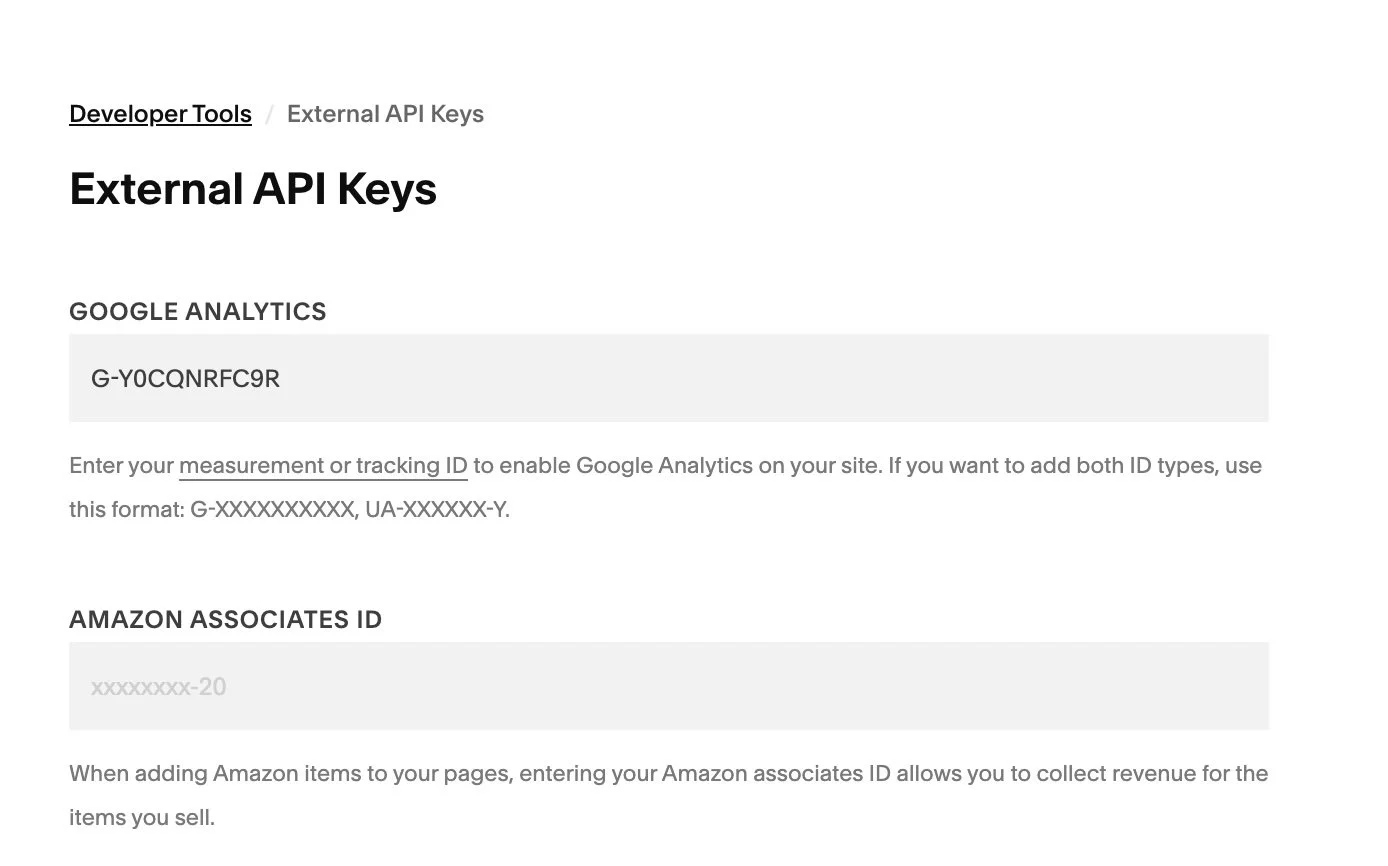
Step 2 — Add the full GA4 script manually to the Header
Go to:
Settings → Developer Tools → Code Injection → Header
Paste this:
<script async src="https://www.googletagmanager.com/gtag/js?id=YOUR_GA4_ID"></script>
<script>
  window.dataLayer = window.dataLayer || [];
  function gtag(){dataLayer.push(arguments);}
  gtag('js', new Date());
  gtag('config', 'YOUR_GA4_ID');
</script>
Replace YOUR_GA4_ID with your actual G-ID.
Step 3 — Save & publish
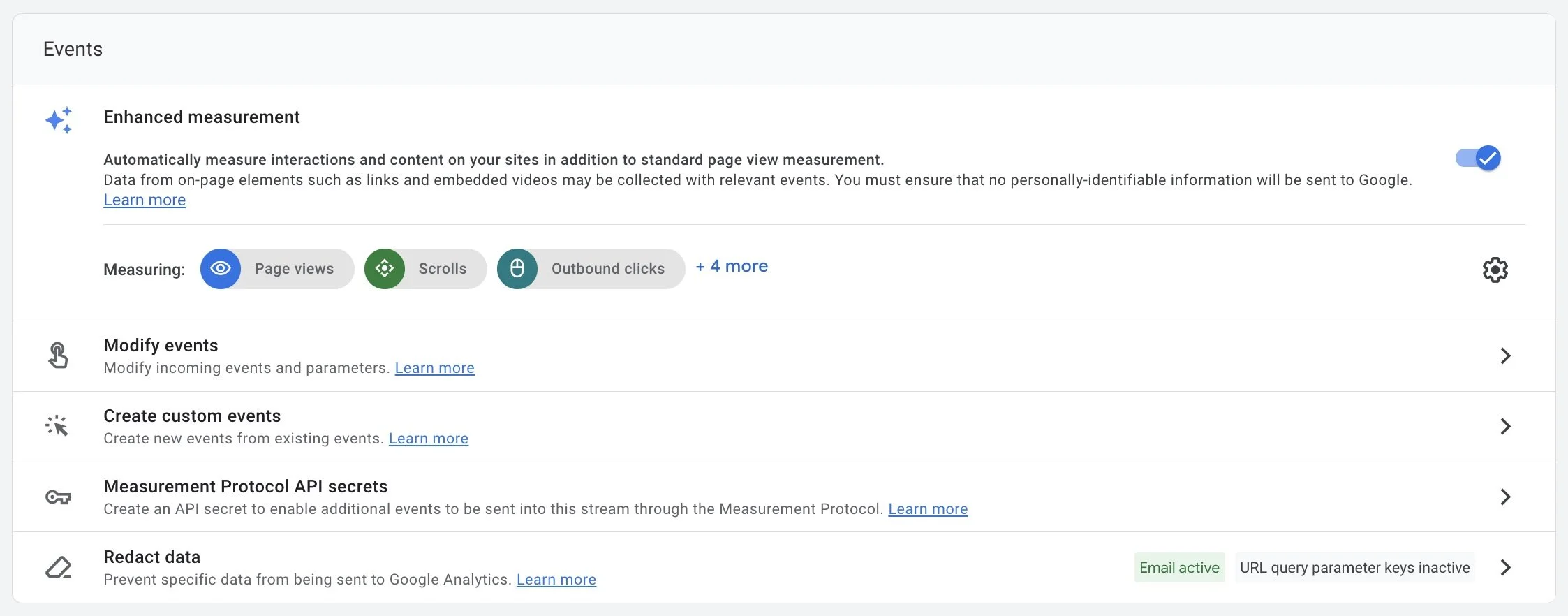
Step 4 — Enable Enhanced Measurement in GA4
Go to GA4 → Admin → Data Streams → Your Site → Enhanced Measurement → Toggle ON.
Step 5 — Use DebugView
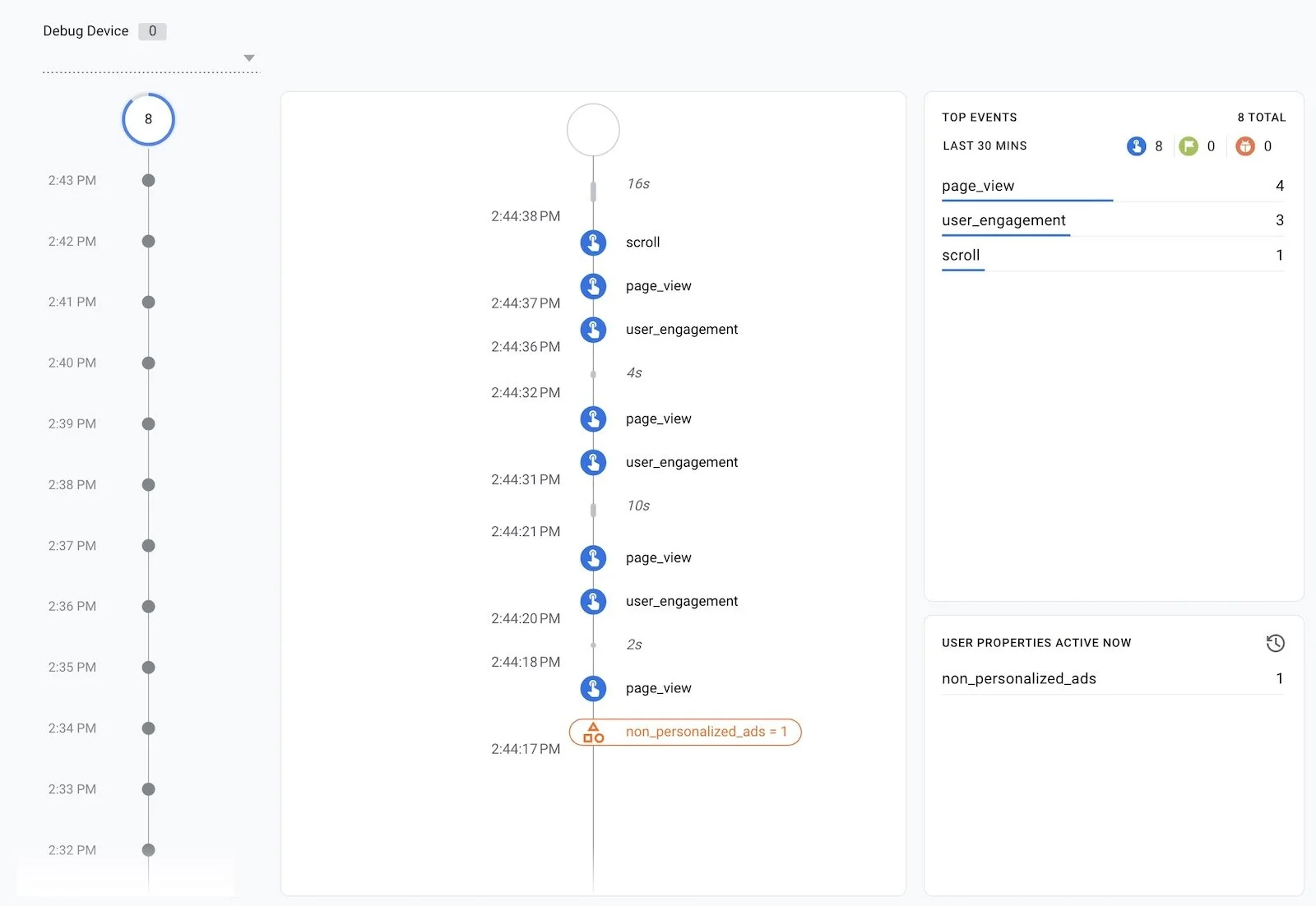
DebugView is GA4’s built-in tool that lets you see whether your tracking is actually working — in real time. It’s the easiest way to confirm that your GA4 installation is firing correctly across your entire Squarespace site.
Here’s how to test it:
Open your website in Chrome
Make sure ad blockers are off.Enable debugging
Either install the free Google Analytics Debugger Chrome extension or add this to the end of your URL:?debug_mode=trueOpen GA4 → Admin → DebugView
You’ll see a live feed of events (e.g., page_view, scroll, click).Browse your Squarespace site
Navigate through your homepage, shop, product pages, cart, and checkout.
Every action you take should appear instantly inside DebugView.
If you click through your site and GA4 does not show events for certain pages, that means the tag is not firing there — and those sessions won’t show in your GA4 reports. DebugView helps you spot these issues immediately before you rely on broken data.
Step 6 — Verify GA4 loads on the important pages:
Homepage
Shop
Individual product pages
Cart
Checkout
Order confirmation
How to Fix “Squarespace Analytics Not Matching GA4 Numbers”
If your numbers still look off after installing GA4 correctly, check the following:
Checklist
GA4 installed manually in the Header (not in the API Keys field)
GA4 script fires on every page
Cookie banner does NOT block analytics
No duplicate GA4 scripts
No conflicting integrations
Safari is not blocking the script
Product pages are not loading GA4 too late
Checkout page includes GA4 (important)
What the numbers should look like after fixing GA4
You can expect:
GA4 sessions to rise significantly
GA4 to track product views
Better engagement data
More accurate traffic sources
Lower discrepancy between Squarespace and GA4
They will still not match perfectly, but they will finally make sense.
Bonus: How to Track Real User Behavior on Squarespace
Understanding your website analytics is helpful, but numbers alone won’t tell you why people behave the way they do. This is where behavior tracking tools like Microsoft Clarity and Hotjar become incredibly valuable. Instead of guessing why someone clicked, scrolled, hesitated, or abandoned the page, you can see real user behavior visualized through heatmaps and session recordings. It turns abstract data into something you can actually interpret and act on.
Heatmaps show you exactly where users click, how far they scroll, and which parts of the page they ignore. Session recordings reveal patterns you would never catch from traditional analytics—like shoppers getting stuck, clicking non-clickable elements, or hovering over things because they expect more information. For anyone using Squarespace, these tools are a perfect complement to GA4 and Squarespace Analytics. They give you the “human layer” of insight that traffic numbers alone can’t provide.
How to install Clarity on Squarespace
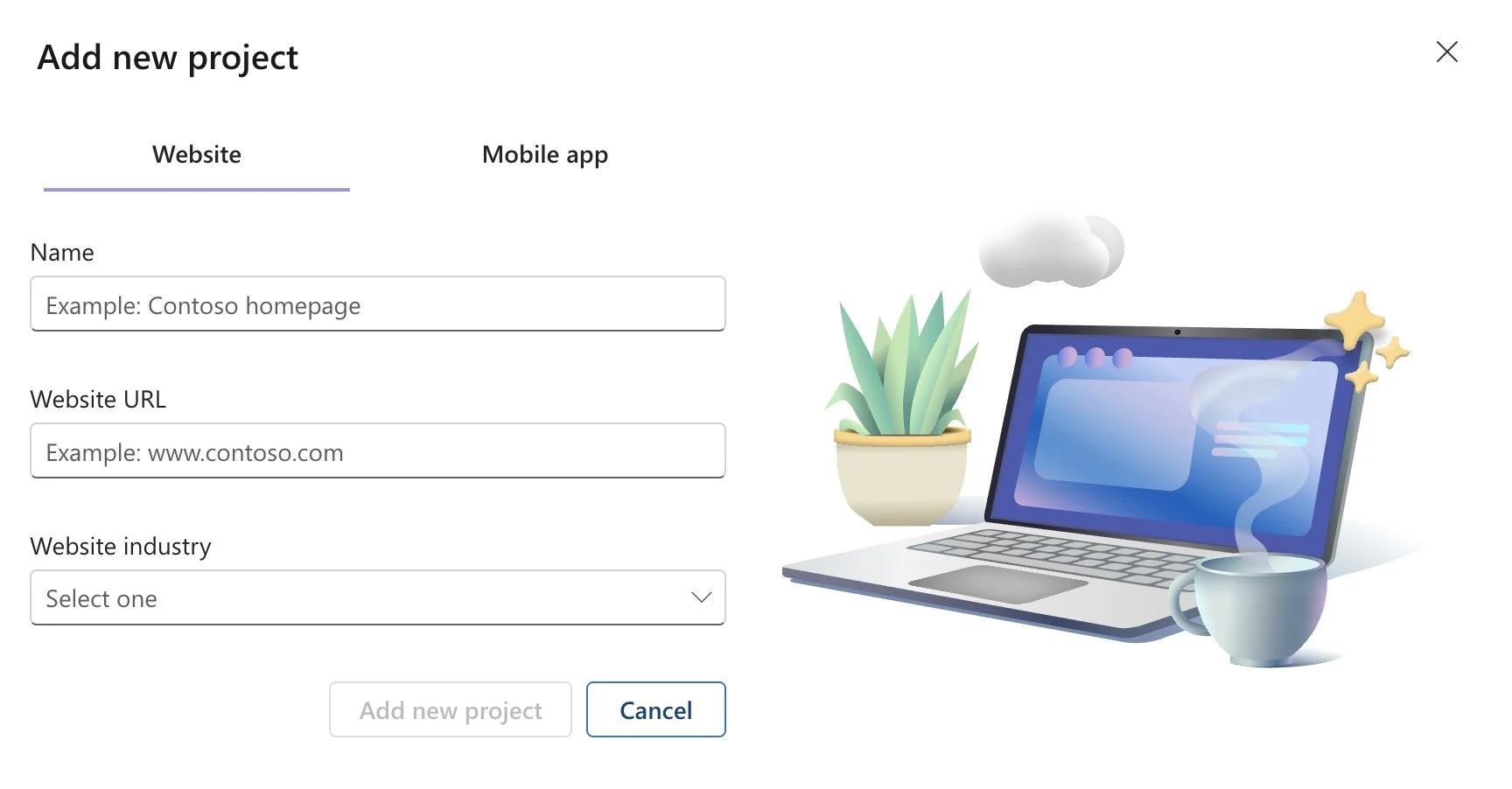
1. Create a free Clarity account and add a new project
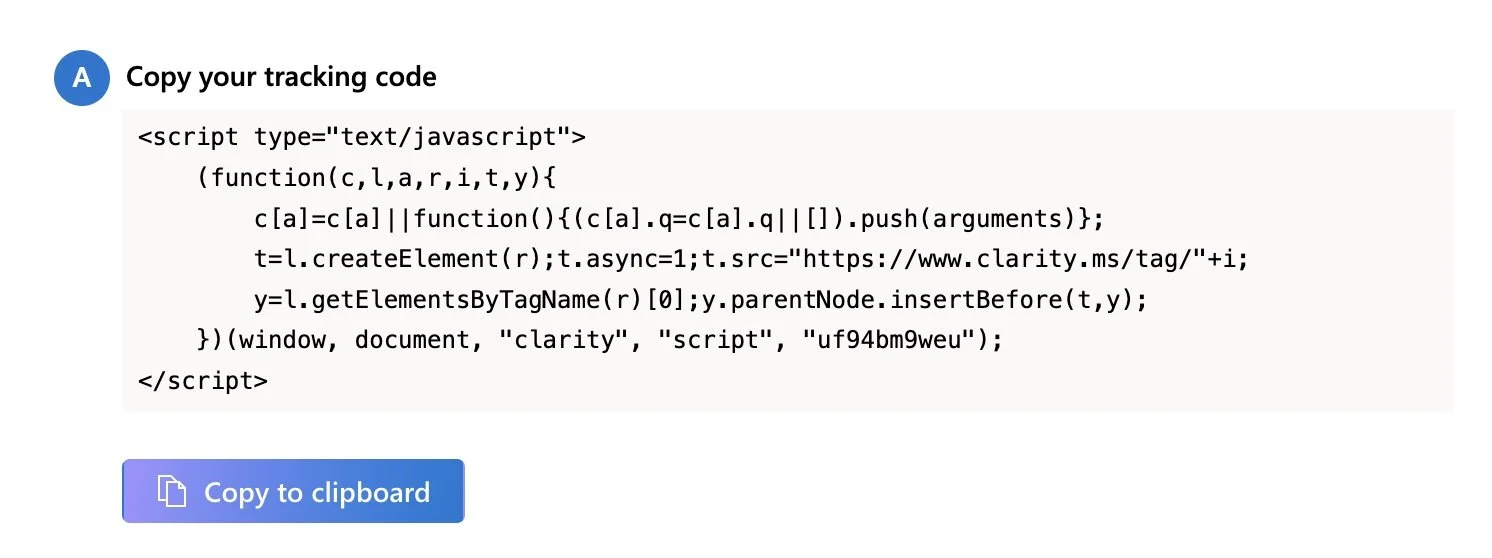
2. Copy the tracking script
3. In Squarespace, go to Settings → Developer Tools → Code Injection → Header
4. Paste the script under the GA4 script
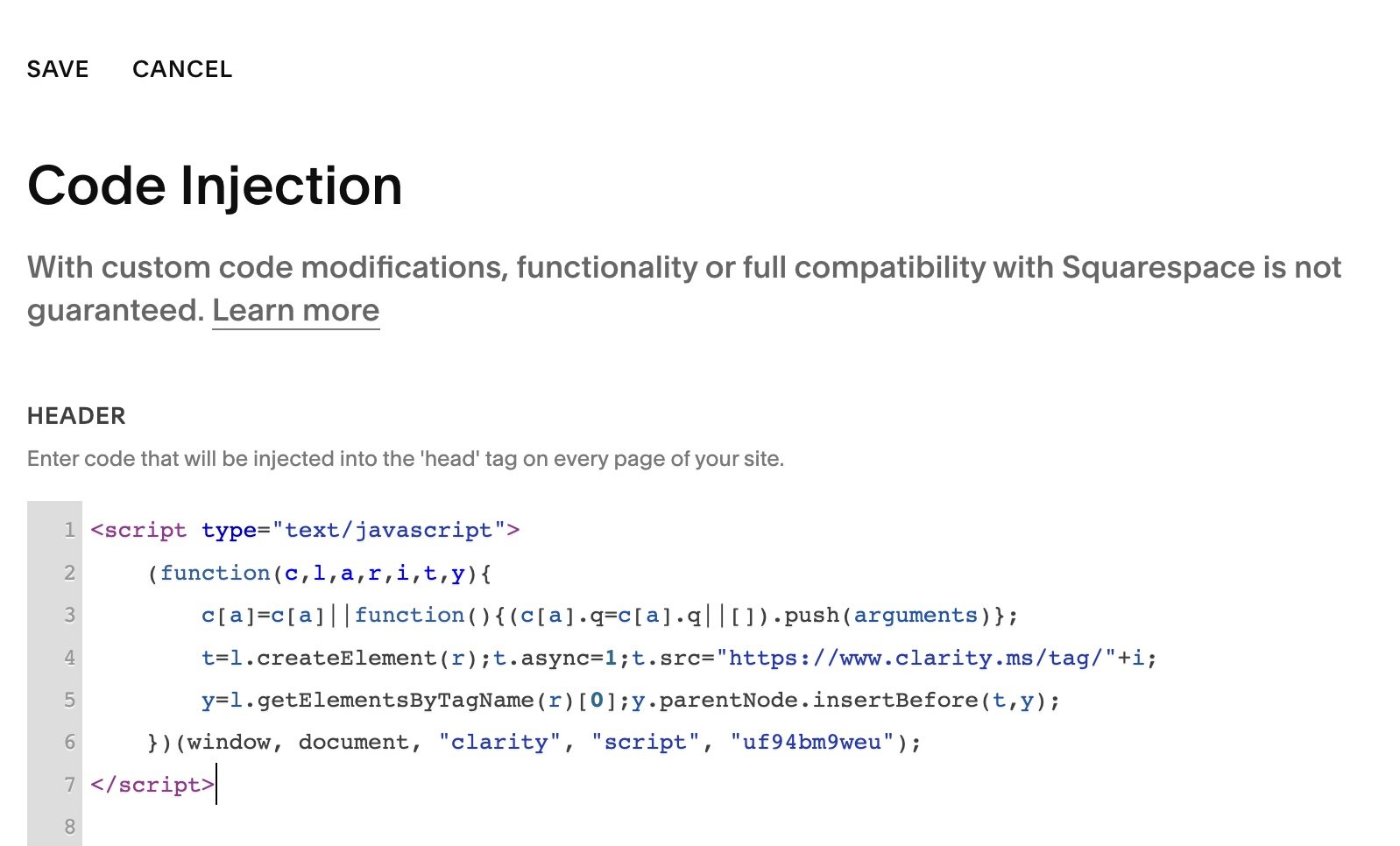
5. Save
And you’re done.
Conclusion: How to Fix GA4 Tracking Issues on Squarespace
Getting accurate analytics on Squarespace doesn’t have to feel confusing or overwhelming. The truth is that nothing is “wrong” with your website, and your traffic hasn’t disappeared — it’s simply that GA4 needs to be installed correctly in order to work the way it was designed to. Squarespace Analytics and GA4 track visitors in very different ways, so the goal isn’t to make the numbers match, but to understand what each tool is good at and use them together.
Once GA4 is set up properly — using the full script in the global header — your data becomes clearer, your decisions become easier, and your marketing becomes more intentional. You stop guessing. You start seeing real patterns. And you finally have analytics you can trust.
If your GA4 numbers look wrong, you’re not alone — and you don’t need to struggle with this on your own.
Need help fixing your Squarespace GA4 setup?
I offer a fast, done-for-you GA4 installation for Squarespace websites.
If you want clean, reliable data without the stress, I can take care of the entire setup for you.
Squarespace & Google Analytics (GA4): FAQs
-
Because Squarespace and GA4 track visitors in completely different ways.
Squarespace uses server-side tracking (hard to block), while GA4 relies on browser scripts that are often blocked by iPhones, Safari, ad blockers, and cookie banners. GA4 can undercount by 50–80% if installed using Squarespace’s default method. -
No.
That field was built for Universal Analytics (UA), not GA4. It loads GA4 too late and sometimes only on certain pages, which leads to missing sessions and incomplete data.
The correct setup is to paste the full GA4 script in the global Header. -
Not by default.
Squarespace does not send GA4 ecommerce events like:view_item
add_to_cart
begin_checkout
purchase
If you need ecommerce data in GA4, you must:
implement custom events manually, or
use Google Tag Manager (GTM) with custom tagging.
-
Because Squarespace doesn’t send those events to GA4 automatically.
Even if your GA4 installation is correct, you won’t see ecommerce events unless you add custom tagging or set up GTM. -
Often, no.
Safari and iOS devices block tracking scripts aggressively.
Squarespace Analytics will count these visitors, but GA4 might not.
This is normal for all browser-based trackers. -
Yes — massively.
If your banner requires consent for analytics, GA4 won’t load until a visitor clicks “Accept.”
Bottom banners are often ignored, which means GA4 never fires.
A center modal dramatically increases accuracy. -
Use DebugView inside GA4:
Go to GA4 → Admin → DebugView
Open your site with debugging enabled
Click around your homepage, shop, product pages, and cart
If events appear in real time, your setup works.
If some pages show no activity, GA4 is not firing there correctly. -
The most accurate method is:
Remove the GA4 ID from the Google Analytics field
Paste the full GA4 script into Settings → Code Injection → Header
Enable Enhanced Measurement
Test everything in DebugView
This method reduces blocking and ensures GA4 loads site-wide.
-
Most Squarespace users do not need GTM.
Use GTM only if you want:Consent Mode v2 (important for EU websites)
Advanced ecommerce tracking
Custom events (add-to-cart, outbound clicks, video views, etc.)
Multiple pixels in one place (Meta, TikTok, Pinterest, LinkedIn)
For simple analytics, manual GA4 is easier and more accurate.
-
Not necessarily.
GTM is more flexible but also more complex.
If you only need basic pageview tracking, manual GA4 is better.
If you need advanced tracking or GDPR compliance, GTM is the right choice. -
You can, but you shouldn’t — unless configured very intentionally.
Having GA4 in both places creates duplicate tracking.
If you use GTM, GA4 should be deployed only through GTM.